1
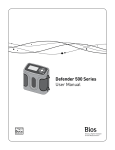
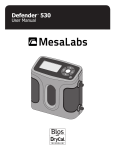
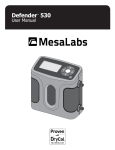
Defender 500 Series
User Manual
Driving a Higher Standard
Bios
International Corporation
in Flow Measurement
10 Park Place
Butler, NJ, USA 07405
SM
Phone: 973.492.8400
Toll Free: 800.663.4977
Fax: 973.492.8270
Email: sales@drycal.com
web: www.drycal.com
© 2006 Bios International Corporation
MK01-24 Rev A
Driving a Higher Standard
in Flow MeasurementSM
Table of Contents
Accuracy
Reliability
Convenience
Introduction...................................................................2
About Your Defender.....................................................3
Operating Your Defender...............................................5
Getting Started...........................................................................5
Bios Optimizer Software............................................................7
Taking Measurements – Quick Start.........................................8
Application Notes.......................................................................9
Taking Measurements – Customizing Your Calibration.......... 10
SETUP ..................................................................................... 10
MEASURE................................................................................. 12
Annual Maintenance and Troubleshooting...................13
Recertification.......................................................................... 14
Sending Your Defender to Bios................................................ 15
Reset Function......................................................................... 16
Out of Range!........................................................................... 16
Leak Testing............................................................................. 17
Shipping .................................................................................. 17
Storage..................................................................................... 18
Defender 500 Series Specifications.............................19
Limited Warranty.........................................................21
Introduction
About Your Defender
Congratulations! You’ve chosen the Defender 500 Series primary
gas flow calibrator, featuring proven DryCal® technology. Both
the Defender 510 and Defender 520 models offer you ±1% of
reading volumetric accuracy within a portable, rugged design
engineered exclusively for field calibration of air sampling pumps.
The Defender is a true primary standard that provides instant
indication of volumetric flow rate, within an accuracy of ±1%
of reading. Its accuracy and high-speed operation make it an
excellent tool to quickly and accurately set the flow rate on air
sampling pumps, in either suction or pressure applications.
Before you get started, we recommend taking a few moments to
review this manual and familiarize yourself with your Defender.
If at any time you have questions regarding its operation, please
contact Bios through our Web site (www.biosint.com) or call
973.492.8400 to speak with one of our knowledgeable customer
support representatives.
The Defender 520 model goes a step further and uses
integrated temperature sensors and pressure transducers
in the flow stream to record the ambient conditions of the
calibration process. An ideal “three-in-one” calibrator, the
Defender 520 provides an enhanced audit trail – volumetric
flow, temperature and pressure – without the need for
additional instrumentation.
The Defender is powered by an internal lead-acid battery
(included), which does not exhibit memory effect and may
be charged continuously, even while the unit is in use.
Defender 520 M
Range: 50–5,000 mL/min
with DryCal Technology®
The Defender features an On/Off control button, an LCD display
screen and convenient touch pad control. Navigation through the
various command screens is controlled by the right, left, up and
down arrows on the touch pad.
MEASURE | SETUP
Defender
Your Defender comes with the following:
Display
Suction Fitting
Measuring Cell
•
•
•
•
•
•
AC Power Adapter/Charger
Optimizer PC Link Software CD
PC Serial Cable
Plastic Leak Test Caps (2); save for use during the Leak Test
Calibration Certificate
Manual
A soft-sided carry case or a hard Pelican case is available for
purchase from Bios.
Pressure Fitting
Operating Your Defender
Getting Started
Data Port
Charging Jack
Calibration Label
Reset Button
Although the Defender’s battery comes charged from the factory,
we recommend fully charging your new Defender’s battery by
connecting the AC power adapter/charger to the Defender’s
charging jack and then plugging it into a standard wall outlet.
This initial charging should take approximately eight hours.
After initial charging, you may continue to charge the Defender
indefinitely by leaving it connected to the power supply with the
charger/adapter. Otherwise, make sure to fully charge your
Defender at least once every three months to help maintain
battery life.
To turn on your Defender, press the On/Off button in the lower
right corner of the control panel for one second. To turn it off,
press and hold the On/Off button for three seconds.
Defender 520 M
Range: 50–5,000 mL/min
with DryCal Technology®
MEASURE | SETUP
When you’re ready, visit SETUP and take some time to explore
your Defender’s many user-definable settings, such as flow
units; continuous or single measurements; choice of display size
(520 model only); and date and time settings. Additionally, you
can choose the number of measurements in the flow average
and the time between measurements, options particularly useful for checking air sampling pump performance over a typical
sampling period to verify that the pump is operating within the
manufacturer’s stated specifications.
Bios Optimizer Software
When turned on, your Defender displays a “splash” screen
showing its product name, model number and flow range.
Navigating through your Defender’s menu screens is easy and
intuitive. Simply press one of the four arrows on the control panel
in the desired direction to toggle between menu options: the
right arrow advances you forward, the left moves you backward,
up moves you upward and down moves you downward.
Your location within each menu is highlighted in reverse type.
A menu item in angle brackets (i.e., <...>) indicates that multiple
options exist for that item. These options will be displayed if that
item is selected.
To select an item that’s highlighted, press ENTER at the center of
the navigational display on the control panel.
Your Defender comes standard with Bios Optimizer 110 software
that enables download of calibration data to a PC. Using Bios
Optimizer 110 is easy and doesn’t require settings changes
to your Defender or configuration of your computer. Simply
connect your Defender’s data port to your PC’s RS-232 (serial)
port using your Defender’s RS-232 cable, install the Defender’s
CD-ROM on the PC and launch the program.
Your PC’s screen will display the Bios Optimizer 110 home page,
where you’ll see real-time calibration data, a running average
and a graphic representation for tracking flow stability. With the
Defender 520 model, ambient temperature and pressure conditions are also displayed. All calibration data is automatically
saved to a text file, with the file’s location in your PC displayed
on the Bios Optimizer 110 home page. The text file data can be
saved to a program such as Excel, where you can customize
it as necessary.
For the ultimate audit trail, an upgrade to Bios Optimizer 120 is
available. Bios Optimizer 120 software provides a comprehensive
calibration database, complete with air sampling pump profiles
(such as models and serial numbers), employee information,
searchable records and the ability to print personalized calibration certificates for the Devices Under Test (DUTs). For more
information about what the Bios Optimizer 120 upgrade can do
for your audit trail, please contact Bios or your Bios distributor.
To run Bios Optimizer software, you must have a Windows XP–
or Windows 2000–compatible PC. The CD-ROM included with
your Defender can be installed any number of times on any
number of PCs (Bios Optimizer 110 only).
If you don’t have a serial port, you can purchase our approved PC
card serial port adapter. Please note that Bios doesn’t recommend
or support the use of USB-to–serial port adapters.
Refer to www.biosint.com for information regarding any available
firmware or Bios Optimizer software updates.
Taking Measurements – Quick Start
The Defender is designed to make the calibration of air sampling
pumps easy and quick:
1. Connect the pump’s tubing to the appropriate Defender port,
either Suction (gas out) or Pressure (gas in), depending on
your application, with your filter or sorbent tube between your
Defender and the pump. For example, if using an air sampling
pump to draw air through a filter or sorbent tube, connect the
pump’s tubing to your Defender’s upper barbed fitting (the
Suction port). Or, if filling sample bags for the collection of
gases and vapors, attach the pump’s tubing to your Defender’s
lower barbed fitting (the Pressure port).
2. Choose MEASURE from the splash screen and press the
orange ENTER button.
3. Select Single and press ENTER. A single measurement is
initiated. Repeat this process to continue taking manual
measurements one at a time.
4. Detach the pump’s tubing from the Defender when done
calibrating the pump. Your sampling pump is calibrated and
ready to begin sampling.
Application Notes
When taking measurements, your Defender displays the actual
flow rate generated by the air sampling pump. Individual
measurements, the running average of all measurements
and the number of measurements in the average are provided
simultaneously. Calibrate the pump by increasing or decreasing
the pump’s flow until the display reads your desired flow rate.
Taking Measurements – Customizing Your Calibration
Calibration of air sampling pumps can be customized and
automated for your convenience:
SETUP
From the splash screen, choose SETUP to access the following
customizable options:
Setup Defender 520 M
• Readings
• Units
• Time
• Date
• Preferences
• Power
• Diagnostics
• About
MEASURE
•READINGS. Choose your preferred number of measurements
in the average, from 1 to 100. If you wish to measure in
time intervals, set the time between measurements from
1 to 60 minutes.
•UNITS. View flow measurements in cubic centimeters,
milliliters, liters or cubic feet (all units are per minute).
In the Defender 520 model only, view pressure in mmHg,
kPa or PSI and temperature in Celsius or Fahrenheit.
•TIME. Set the current time in the format you prefer.
•DATE. Set the month/date/year in the format you prefer.
•PREFERENCES. Read Default offers a choice of Single,
Burst or Continuous measurements. Choose the type of flow
10
measurement you will normally use. Return your Defender to
its factory default settings by choosing Yes; otherwise, leave
set at No. In the Defender 520 model only, Magnification controls the amount of data on the display; choose Zoom to view
only flow measurements in larger font, or choose Detail to
view both flow measurements and temperature and pressure
conditions in smaller font.
•POWER. Power Save defaults to On, which is an auto shut-off
feature that turns your Defender off after five minutes of
inactivity. Change the default to No if you want your Defender
to remain on until you manually turn it off. Backlight allows
you to turn the LCD backlight on for illumination or off to
conserve battery power.
•DIAGNOSTICS. Gives you access to the Leak Test
(see Leak Testing).
•ABOUT. Tells you more about your Defender; a useful screen
to refer to when speaking with Bios reps.
To customize each option, move between selections using the up
and down arrows. When a selection is highlighted, use the right
and left arrows to toggle between your choices for that selection.
Press CONFIRM to save any changes and return to SETUP, or
press EXIT to return to SETUP without saving any changes.
If at any time you’d like to return your Defender to its factory
default settings, navigate to Preferences, set Default Settings
to Yes and then Confirm the changes.
11
MEASURE
Once you’ve finished customizing your Defender’s SETUP and
confirmed your changes, select MEASURE from the SETUP
screen (or from the splash screen if you have not been to
SETUP). MEASURE gives you access to TAKE MEASUREMENTS,
where you can choose between the following flow measurement
options:
You can stop a series of hands-free measurements at any time
by choosing either PAUSE or RESET. PAUSE terminates the flow
measurement or sequence of flow measurements but leaves
the flow results on the screen, and RESET terminates the flow
measurement or sequence of flow measurements and clears the
screen, allowing a new sequence of measurements to begin.
•Single. Manual measurement with a running average (default
is 10 measurements in the average and is user-definable
from 1 to 100).
EXIT returns you to the TAKE MEASUREMENTS screen, and
SETUP allows you to further customize your Defender’s operation.
•Cont. Continuous hands-free measurements with a running
average (default is 10 measurements in the average and is
user-definable from 1 to 100).
•Burst. Stream of hands-free measurements taken in a
user-definable grouping of 1 to 100 measurements. Once
completed, no more measurements are taken until another
Burst is initiated.
Select the type of flow measurement you want, then press
ENTER. The flow cell viewing window lights up, and the Defender
instantly begins taking flow measurements.
12
Annual Maintenance and Troubleshooting
Your Defender is engineered to provide years of reliable service,
with appropriate care and maintenance. Bios recommends
annual calibration by an ISO 17025-accredited laboratory, such as
Bios, to help ensure the best possible flow measurements, meet
regulatory requirements and provide a bulletproof audit trail in the
event of litigation. If you should encounter any problems with your
Defender, immediately contact Bios Customer Service and provide
a detailed description of your situation, including the Defender
model and serial number, information about the air sampling
pump and the current sample train, the environmental conditions
during the test, the flow point or points that you are checking and
a detailed explanation of the issue you’re experiencing.
13
Recertification
Your Defender is a precision measuring standard with moving
parts machined to extremely close tolerances. Various environmental factors, product wear, drift of the temperature sensors
and pressure transducers used for recording ambient calibration conditions, or inadvertent damage may adversely affect your
Defender’s measurement accuracy or general performance.
For these reasons, Bios highly recommends having your Defender
annually verified by an ISO 17025–accredited laboratory, such as
Bios, to ensure its measurement integrity. For those applications
subject to regulatory or ISO requirements, verification by a
laboratory accredited to the international calibration standards
set by ISO provides you with assurance of measurement integrity
and a defensible audit trail in the event of litigation.
For the ultimate in Defender maintenance and to take advantage
of any available software and mechanical upgrades, Bios offers
an elective recertification program. This is a complete product
service package that provides pre-calibration; complete product
refurbishment, testing and available upgrades; post-calibration;
and NIST-traceable, ISO 17025–, ANSI Z-540– and NIST Handbook 150–backed calibration certificates. Recertification includes
a 90-day service warranty should any related labor or parts
replacements prove faulty.
Turnaround time is generally two weeks from time of receipt.
For an expedite fee, we will place your Defender “next on bench”
for 48-hour turnaround. This means that a Defender received on
Monday will be return-shipped on Wednesday, and a Defender
14
received on Friday will be return-shipped on Tuesday. For a
detailed explanation of the expedite process and to obtain
current pricing for recertification, please contact Bios
at 973.492.8400 or visit our Web site at www.biosint.com.
Please note that while any ISO 17025–accredited gas flow
measurement laboratory may be capable of verifying the
accuracy of your Defender, Bios is the only authorized service
center for Bios products. All Defender service and calibration is
performed in our ISO 17025–accredited laboratory in New Jersey
by experienced Bios personnel.
Sending Your Defender to Bios
Please contact Bios for an RMA (return merchandise authorization) number before sending your Defender to our factory for
elective recertification or other service. You can get an RMA
number through our automated web-based system at www.drycal.
com/forms/rma.htm, by email to service@biosint.com, or by telephone at 973.492.8400. Our Web site address is www.biosint.com.
Sending your Defender to Bios without an RMA number may
result in return of the instrument without inspection or a
substantial delay in service turnaround time.
When requesting an RMA number, provide your Defender model,
serial number and revision level. Also describe any product issues
you may be experiencing. Please keep in mind that Bios will not
begin evaluation and service of your Defender until you have
accepted and approved, in writing, our formal RMA quote for
service. This protects both you and Bios during this process and
ensures a fair and efficient service experience.
15
If sending your Defender for repair or evaluation (rather than
elective recertification), please contact Bios for technical support
or troubleshooting assistance prior to shipping the unit. We will
first attempt to resolve the situation over the phone or via email.
If you’ve provided us with a detailed description of your Defender’s issue and application details and we’re unable to resolve the
situation by phone or email, we’ll issue you an RMA number for
prompt return of your Defender for evaluation.
Please note that Bios will make every attempt to verify your
issue, as we want you to get the most out of your Defender.
However, if we are unable to detect a product issue or if we
determine that the issue is application-related rather than
product-related, we reserve the right to charge an evaluation fee.
Reset Function
If your Defender fails to respond to push-button commands, try
resetting the unit by pressing the reset button on the back. This
can be done easily with a bent paper clip. Please note that resetting your Defender will not affect your user settings. However, if
you are in the middle of a calibration, your Defender will return
to the initial measurement phase and you’ll need to initiate a new
flow measurement.
Out of Range!
If your sampling pump is generating more flow than your
Defender’s rated flow range, the “Out of Range!” warning
appears when you attempt to take a flow measurement.
Immediately lower or disconnect the pump’s flow. When the
flow is within the proper range, choose RESET to clear your
16
Defender’s last measurement, or try to take a new measurement.
You may verify your Defender’s flow range by navigating to SETUP,
then About.
Leak Testing
You may access the Leak Test through the Diagnostics option on
the SETUP screen. This test is designed only to verify the internal
integrity of the instrument and alert you to an internal leak. Since
it may take up to an hour, we recommend performing the Leak
Test only as an intermediate quality control check or whenever
the integrity of the instrument is questioned due to accidental
misuse or inadvertent damage.
Please keep in mind that the Leak Test is not a substitute for a
comprehensive examination of the unit’s overall performance,
and a successful Leak Test does not ensure that your Defender is
operating accurately. For this purpose, Bios offers recertification,
our full-service package (see Recertification).
Shipping
When shipping your Defender, please ensure that the packaging
is adequate to protect the instrument. Whenever possible, your
Defender should be shipped in its original packaging or within
a hard case such as a Pelican carrying case (available for
purchase from Bios). We highly recommend using a standard
freight carrier (e.g., FedEx, UPS) that supplies tracking numbers
and insuring the product against damage in transit.
17
Bios is generally not responsible for freight costs associated with
shipments to and from Bios, except in certain instances; please
contact Bios for information before initiating a shipment.
Defender 500 Series Specifications
Bios is not responsible for damage that may occur during
shipment.
510L/520L, from 5-500 mL/min
510M/520M, from 50-5,000 mL/min
510H/520H, from 300-30,000 mL/min
Storage
If you need to store your Defender for an extended period,
please follow these guidelines:
•Always store it in a clean, dry place.
• If your Defender cannot be attached to its AC power
adapter/charger while in storage:
– Fully charge it before extended storage. If the battery
isn’t fully charged prior to storage, it might be
permanently damaged.
– Fully charge it at least once every three months.
18
• If possible, leave it attached to its AC power adapter/charger
while in storage.
• When removing your Defender from storage, recharge the
battery for at least 12 hours prior to use.
Models:
Measurements:
Volumetric Accuracy: ±1% of reading
Time per Measurement: 1-15 seconds (approximate)
Type: Single, Continuous or Burst
Measurement Units: cc/min, mL/min, L/min, cf/min
Basics:
Dimensions (H x W x D): 5.5 x 6 x 3 in / 140 x 150 x 75 mm
Weight: 29 oz / 820 g
Configuration: Integrated flow measuring cell,
valve and timing mechanism
Temperature & Pressure Sensors (Defender 520 model only):
In the flow stream
Press.: 3.5 mmHg (typical), 7.0 mm (max);
Temp.: 0.8 deg C (typical), 1.3v deg C (max)
AC Adapter/Charger: 12V DC, >250ma, 2.5 mm,
center positive
Battery: 6V rechargeable, sealed lead-acid,
6-8 hours typical operation
Battery Operational Time (5 cycles/min):
3 hrs backlight on, 8 hrs backlight off
Pressure & Suction Fittings: ¼" barbed tube fittings
19
Display: Backlit graphical LCD
Limited Warranty
Usage:
The Bios DryCal Defender 500 Series is warranted to the original end user
to be free from defects in materials and workmanship under normal use
and service for a period of one year from the date of purchase as shown on
the purchaser’s receipt. The Defender 500 Series’ battery is warranted for
six months from the original purchase date. If the unit was purchased from
an authorized reseller, a copy of an invoice or packing slip showing the date
of purchase may be required to obtain warranty service.
Flow Modes: Suction or Pressure
Operating Pressure (Absolute): 15 PSI
Ambient Humidity: 0–70%, non-condensing
Storage Temperature: 0–70 °C
Warranty: 1 year; battery 6 months
Bios Optimizer Software
Requires Windows XP– or Windows 2000–compatible PC and
RS-232 (serial) connection
CD-ROM (supplied) featuring Bios Optimizer 110 software;
no restrictions apply
The obligation of Bios International Corporation under this warranty shall
be limited to repair or replacement (at our option), during the warranty
period, of any part that proves defective in material or workmanship
under normal use and service, provided the product is returned to Bios
International Corporation, transportation charges prepaid.
Notwithstanding the foregoing, Bios International Corporation shall have
no liability to repair or replace any Bios International Corporation product:
RS-232 cable (supplied) for Defender 500 Series data port to
PC RS-232 (serial) port connection
1.That has been damaged following sale, including but not limited to
damage resulting from improper electrical voltages or currents,
defacement, misuse, abuse, neglect, accident, fire, flood, terrorism,
act of God or use in violation of the instructions furnished by Bios
International Corporation;
PC Card (optional and as necessary) creates an RS-232 port
on your PC
2.When the serial number has been altered or removed; or
Licensed upgrade to Bios Optimizer 120 is available
3.That has been repaired, altered or maintained by any person or party
other than Bios International Corporation’s own service facility or a Bios
authorized service center, should one be established.
This warranty is in lieu of all other warranties and all other obligations
or liabilities arising as a result of any defect or deficiency of the product,
whether in contract or in tort or otherwise. All other warranties, expressed
or implied, including any implied warranties of merchantability and fitness
for a particular purpose, are specifically excluded.
In no event shall Bios be liable for any special, incidental or
consequential damages for breach of this or any other warranty,
express or implied, whatsoever.
20
21