1
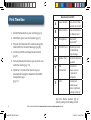
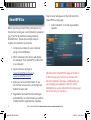
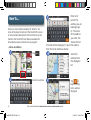
4. Select the desired WiFi network and tap
“Connect”.
WiFi
Content can be downloaded to the device by:
• Connecting to a WiFi network
• Connecting to a PC and sync via the
Navman SmartEco
• A Bluetooth connection with a smartphone
running the Navman app
Setting up a WiFi Connection
1. Connect your receiver to the AC power
adapter or your vehicle power using the
supplied vehicle power cable. (Be sure that
power is being supplied by checking that
the light on the vehicle power adapter is
on.)
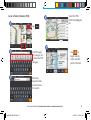
5. If requested, enter the password for the
network. The receiver will attempt to log
on to the network and display “Connected”
when successful.
Checking Content Sync Status
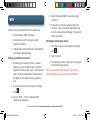
1. Turn the receiver on and tap the Settings
icon
.
2. Tap “Content”.
3. “Content Sync Status” displays the progress
of content being synced.
You do not need to wait until the Sync Status is
100% to begin using your Navman SmartGPS.
2. Turn the receiver on and tap the Settings
icon
.
3. Tap on “WiFi”. A list of available WiFi
networks is displayed.
Get more information at www.navman.com.au or www.navman.co.nz
SmartGPS QSG AU.indd 9
9
8/14/2013 8:48:24 AM