1
Chapter 7 Using the Traffic Cop
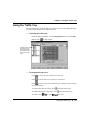
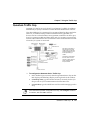
Ø To pan across the drawing:
1.
Click Pan.
2.
Click at the location you want to be begin your pan view.
3.
Drag the cursor to another location in the drawing and release the
mouse button. The view pans from the start location to your end
location.
Ø To zoom into the display:
1.
Click Zoom.
2.
Click at the start location where you want to begin your zoom.
3.
Drag your cursor to mark the area. A rectangle appears to define the
section of drawing you want to zoom in on.
4.
Release the mouse button.
Ø To zoom out of the display:
Ÿ Click Zoom Out.
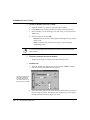
Ø To select a different .DXF drawing:
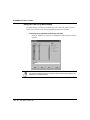
1.
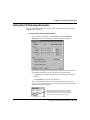
From the I/O Drawing Display window, click Open. The File Open
dialog box appears.
2.
Select the .DXF to display, then click OK.
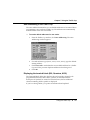
Ø To print a drawing:
Ÿ From the I/O Draw Display window, click Print. The drawing is
printed to your default printer.
Displaying I/O drawings l 221