1
CHAPTER 2
The Display Controls
The LCD Monitor’s Display Controls
This chapter covers the LCD Monitor’s On Screen Display (OSD). Using the OSD you can adjust the contrast,
brightness, display position, display clarity, and color temperature, etc. You can also adjust the stereo speaker volume
and set OSD parameters. Please read this chapter carefully to get the most out of your LCD Monitor.
Adjusting the Monitor’s Display
The LCD monitor features an intuitive, menu-driven, On-Screen Display (OSD). You can access
the OSD any time that the PC is powered up. If the PC is in a power saving mode, or is powered
down, the OSD is inaccessible.
NCTION
DJUST
ENU
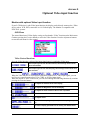
OSD Main Menu
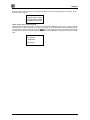
To activate the OSD Main Menu, press the MENU key. To navigate the topline menu, use either
the down ▼ or up ▲ function keys to scroll between the main menu choices.
The option that is currently selected is highlighted in red and indicated by a pointer. Each main
menu has an associated submenu and is further described.
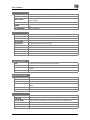
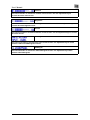
Main Menu
BASIC SETTING
POSITION
AUTO-ADJUST
Control contrast, brightness, video level, and Gamma, etc.
COLOR TEMP.
MISCELLANEOUS
VIDEO
LANGUAGE
To control the display colors.
INPUT PORT
RESET
EXIT
To select input signal sources between PORT1 (VGA) and PORT2 (Digital DVI).
To control the display size, position, clock and phase, etc.
To automatically adjust the picture quality and alignment.
To control audio volume, OSD positions and to give current display mode information.
For S-Video or CVBS input mode selection (optional)
To select different OSD text language.
To reset the display parameters to the factory default values.
Exit OSD Menu.
7