1
11
Samsung Data Migration Software
The simplest way to get your new SSD up and running
Migrate Your Data in 3 Steps
One of the biggest pain points for new users when upgrading from their Hard Disk Drive (HDD) to their new Solid State
Drive (SSD) is the process of moving over all of their existing files and programs. Samsung’s Data Migration software was
designed with novice users in mind to simplify this tedious process. Rather than inundate users with an endless array of
configuration options and menus, the Samsung Data Migration (SDM) Software completes this task in 3 simple steps.
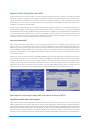
Automatic Disk Scan and Diagnosis
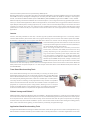
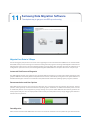
The SDM software will scan your system for any connected disks and present your current system status with easy-to-read
graphics. SDM hides unnecessary features and partitions from the user, automatically moving the crucial “System Partition” to
the SSD and leaving the user free to concentrate on the partitions that contain their operating system, programs, and data.
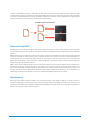
Recommendation and User Options
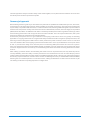
Next, SDM will recommend a plan of action and allow the user to customize how the migration will proceed. The first
partition, which generally contains the Windows operating system installation, is added automatically. Users can add
an additional partition to the migration by simply clicking on its picture. While SDM will automatically partition the
drive proportionally, the user can adjust partition sizes to their personal preferences by simply dragging the slide bar in
between the two partitions.
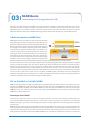
Data Migration
Next, sit back and relax while SDM takes care of the rest. All of the contents from the partition(s) you selected will be