1
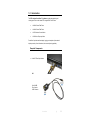
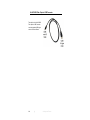
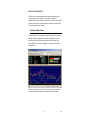
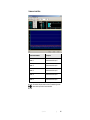
Extract the files from the downloaded zip file. In the same section on the ETS-Lindgren website where the driver is located, click the link to download the installation instructions. Follow those instructions to install the USB driver on your computer. Step 2: Install ProbeView II See Required Components on page 7 for a list of hardware and software required to install and operate ProbeView II. Insert the ProbeView™ II CD into the CD drive on your host computer. Click Setup.exe located on the CD. ProbeView II installs in C:\Program Files\ProbeView II. Step 3: Connect Components Connect the fiber optic cable from the fiber optic ports on the probe to the HI-4413P Fiber Optic Modem or HI-4413USB Fiber Optic to USB Converter, matching white to white and yellow to yellow as indicated by the markers on the probe, modem, and cable. HI-4413P: Plug the HI-4413P into the RS-232 port on the computer (communication port 1, 2, 3, 4, or 5). HI-4413USB: Plug the HI-4413USB into the USB port on the computer (communication port 1, 2, 3, 4, or 5). The first time you use the HI-4413USB with your host computer, Microsoft Windows will set up the driver you installed in step 1, and then display a message that the device is ready to use. 12 Turn on the probe. Start ProbeView II. Click Start, All Programs, Holaday, ProbeView II, and then click ProbeView II. | Getting Started