1
Using Composica
38
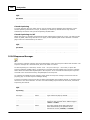
Publish options
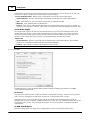
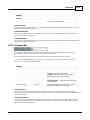
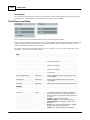
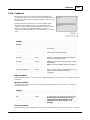
The available options in the publish dialog depend on the selected publish format.
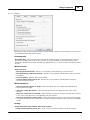
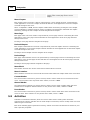
Basic Student Tracking
While deploying to a SC ORM supporting LMS is the recommended manner to track student's performance
on the course, C omposica provides with a very simplistic alternative for non-LMS configurations. When
basic student tracking is activated, a password is set to access the tracking results. In the published
course, a link is available on the introduction page which, after entering the password, leads to a
spreadsheet of the recorded data.
Whenever possible, it's recommended to seek out an LMS alternative to basic student tracking, which
provides much deeper and richer information tracking.
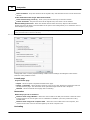
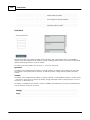
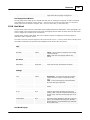
LMS Notification - PENS
When publishing as a SC ORM 1.2 or SC ORM 2004 content package, the PENS option is available. When
activated, the course is deployed to the LMS using the PENS protocol. For the values to enter in the
address, user and password fields, please refer to the user manual of your LMS product.
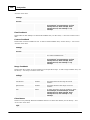
Customize URL
When publishing to the web server, a custom URL path can be chosen to which the course will be
published. By default, the path is made up of the project's name, and the selected view (if any).
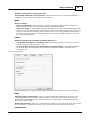
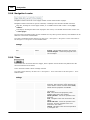
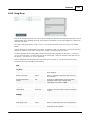
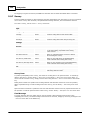
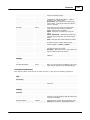
PDF Document
When publishing to a PDF document, several options are available which control the look of the result
PDF:
Convert to greyscale - When checked, the entire course is stripped of colors, and shown in shades
of grey.
Strip images, media and shapes - When checked, all images, media files, and shapes, are
stripped from the course.
Strip text and border colors - When checked, all text and element borders are stripped of color,
and are shown in black.
Strip fill images and colors - When checked, all fill images and fill colors are stripped, and are
shown as transparent.
Show activities in their correct state - When checked, all interactive activities are shown as if
they were answered correctly, rather than showing in their initial unanswered state.
Master Layer - Allows overriding the master layer for the entire course. When set to [ Inherit ],
the predefined master layer settings are maintained. When set to [ None ], no master layer is
shown.
Dynamic Layer - Allows overriding the dynamic layer for the entire course. When set to [ Inherit ],
the predefined dynamic layer settings are maintained. When set to [ None ], no dynamic layer is
shown.
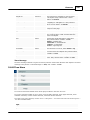
Compression
When publishing to an executable application, the compression of the executable can be chosen, which is
a balance between the result file size, and the time it takes to open when executing.
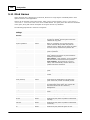
3.4.1 Multi-SCO considerations
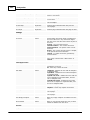
In Multi-SC O mode, set in the SC ORM run-time properties, each page is packaged into a separate SC O,
as opposed to the whole course being maintained in a single SC O.
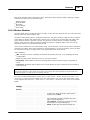
Why should Multi-SCO be generally avoided?
C hoosing to publish as Multi-SC O presents the following limitations in the course, because of the very
nature of how this feature works in LMSs:
Many navigation elements will not work as expected:
Because an SC O cannot directly link to another SC O in SC ORM,
navigation buttons to other pages will not be able to function;
© 2010 C o m p o s ic a Ltd .