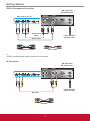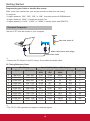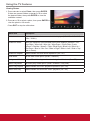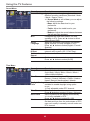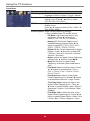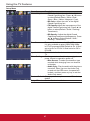
1
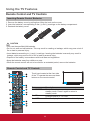
Using the TV Features
1
11
2
3
12
4
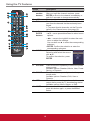
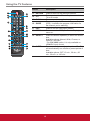
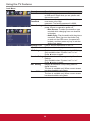
Button
4 0~9, number
buttons
5
6
- VOL +
FAV
7
▲▼◄►/
ENTER
buttons
8
INPUT
Description
Press the respective button to select a channel.
After you input the channel numbers, press
ENTER to direct to the channel immediately, or
wait for 3 seconds to change automatically.
Press to adjust the volume.
Press this button to show Favorite List and select
your favorite channels that have already been
stored.
j To preset favorite channels, set the Favorite
option in the Channel menu (see page 16).
Press these buttons to navigate the OSD menus.
•▲/▼ - move upward/downward to select menu
options.
•◄/► - move to the right/left to select the main
menu or adjust the settings.
You can also use ► to enter the corresponding
submenu.
•ENTER: Confirm the selection or enter the
corresponding submenu.
13
14
5
15
6
16
17
7
8
18
9
19
10
20
9
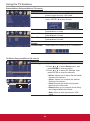
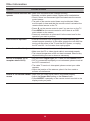
Press to display the Source
Select list and select the source
with ▲/▼.
To confirm the selection, press
ENTER.
PICTURE
PC
Media
Press this button repeatedly to select the preset
picture mode.
Available options: Standard, Movie, User, Power
Saving, or Dynamic.
Press this button repeatedly to select the preset
sound mode.
Available options: Standard, Soft, User or
Dynamic.
Press this button to choose the available sound
output that is preset by TV broadcasting station.
Available options: Mono, Stereo, or SAP.
Press to turn off the sound. To restore the sound,
press this button again, or press the VOL+/button.
10 SOUND
11 MTS
12 MUTE
12