1
®
User’s Manual v.15
QVidium H.264 HD Video Codecs™
4.3 Configuring the Encoder for RTSP and Server Mode
Note: These functions have been disabled in the current release, but may be re-instated by
special request. Please contact QVidium support at info@qvidium.com if you require either of
these modes of operation. For RTSP operation, we recommend contacting EVOstream
(www.evostream.com) and purchasing an optional license for their package of RTMP, HLS, and
RTSP protocols. For Server Mode, we recommend deploying an external PC running our
QVidium Media Server software, since the QVPRO/QVENC can only support outputting a limited
number of streams as a server.
After clicking on Start under the Encoder menu, the configuration we had described in section
2.1 will immediately begin to send out a continuous video stream of UDP/IP packets, optionally
encapsulated with RTP headers, to the destination address. However, the QVPRO also has two
alternate modes of operation that allows a remote Decoder, such as another QVPRO code, an
Amino Set-top box configured with QVidium software, or the QVidium StreamViewer application,
to initiate the video stream. These modes are: RTSP and Server Mode.
4.3.1 RTSP Mode
Real-Time Streaming Protocol, or RTSP, is a common and widely used protocol for controlling a
video stream. The free, unsupported version of RTSP is only known to work with VLC. For a
supported version of RTSP that works with a much wider variety of decoders, please contact
www.evostream.com for the EVOstream add-on to the QVENC and QVPRO. To set up the
QVPRO or QVENC codec for the unsupported version of RTSP operation to a computer running
VLC, for example, you can use the following procedure:
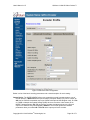
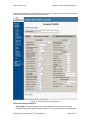
1. On Encoder Profile select RTSP IP Transport on the Basic tab.
2. Click Save and then click Start.
3. From VLC (www.videolan.org) :
a) Select ‘Open Network Stream...’ from the 'Media' menu.
An 'Open Media' dialog should display.
b) On the dialog, select 'RTSP' from the 'Protocol' drop down list.
c) Enter "192.168.1.23/vox.mpg&xcode=0&input=0" in the 'Address'
field. (Substitute 192.168.1.23 for the actual IP address of your
codec.)
d) Click on the 'Play' button in VLC.
A green screen from VLC usually means the decoder is not receiving IP packets. On the decoder
menu you can click 'Status'. That will tell you if you are receiving bits. Also on the Encoder you
can click on 'Status' from the Encoder menu to see if the encoder is sending bits. On both
systems there is a 'Show Log' menu option that may help debug the setup if it is not working.
4.3.2 Server Mode
QVidium also has its own Server Mode that allows a QVidium decoder device or application to
remotely start a QVidium encoder and initiate a video stream. On the QVPRO, simply leave the
Destination IP Address blank and Start the encoder. This will cause the encoder to listen for a
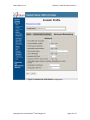
start packet from the decoder. On a QVPRO Decoder, click ‘Enable’ under the Decoder’s Server
tab and enter the IP address of the QVidium encoder. When you click Start on the Decoder, the
decoder will send an IP packet to the encoder to initiate a video session.
Note: In server mode, you must use ARQ for the IP Transport and use a different port for the ARQ
port than for the UDP port.
®
Copyright 2011-2014 QVidium Technologies, Inc.
Page 32 of 71