1
SETTINGS MENU ICONS
"TOP OF SCREEN" ICONS
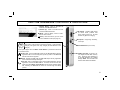
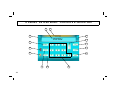
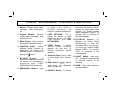
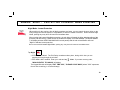
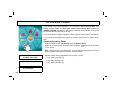
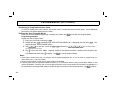
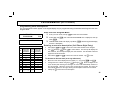
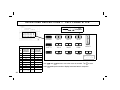
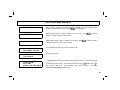
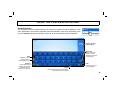
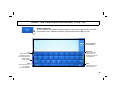
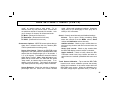
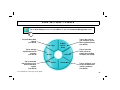
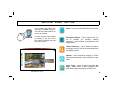
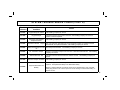
When in the Settings menu, several active (touchable) icons appear at the top of IBR-ITAB screen:
3G
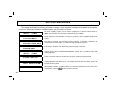
Go Back to Previous Screen:
Tap to return to the previous menu
level; if currently in the Settings
menu, returns to the Home
Screen.
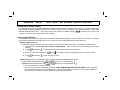
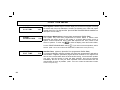
Specialized Menu: Opens specialized menu buttons that appear
at the bottom of the screen. Buttons are unique for each applications (specialized menu buttons
are not available within all applications).
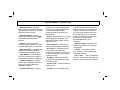
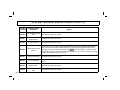
USB in Use: Indicates the USB
Socket located on the side of the
IBR-ITAB is in use (thumb drive,
portable hard drive, memory stick,
etc.). Note: This USB Socket is
for data transfer only (NOT for
charging).
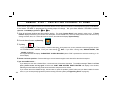
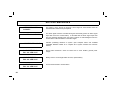
Android: Appears when the Android operating system is in use.
Signal Strength Indicator: Displays the wireless signal power
between the IBR-ITAB and the
IBR-WIFI-MOD control panel interface module. Note the indicator
displays 3 bars; the more bars that
are lit, the stronger the wireless
signal.
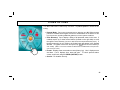
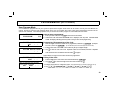
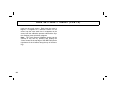
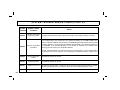
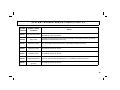
Battery Charging: The IBR-ITAB
is correctly connected to its charging station and its integral battery
is charging.
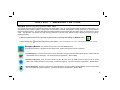
Battery Charged: The IBR-ITAB
is removed from its charging station and is operating on integral
battery power only; battery is fully
charged.
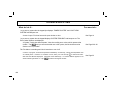
3:48 PM
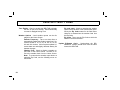
Battery Almost Drained: Battery
is almost depleted, reconnect to
charging station as soon as possible.
Device Options: Tap to open a
popup with the following selections: Screen lock powers down
the IBR-ITAB display while the
IBR-ITAB remains in operation
(press the Back / Power button to
resume); Reboot restarts the IBRITAB; Power off turns off the IBRITAB.
Battery 1/2 Full: Battery is approximately half drained.
45