1
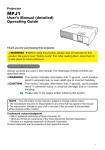
Operating Using the automatic adjustment feature the AUTO button on the remote control. 1. Press Pressing this button performs the following. AUTO For a PC signal The vertical position, the horizontal position, the horizontal phase and the horizontal size will be automatically adjusted. And the aspect ratio will be automatically set to default. Make sure that the application window is set to its maximum size prior to attempting to use this feature. A dark picture may still be incorrectly adjusted. Use a bright picture when adjusting. For a signal from the USB STORAGE The aspect ratio will be automatically set to the default. For a video signal, s-video signal or component video signal The video format best suited for the respective input signal will be selected automatically. This function is available only when the AUTO is selected for the VIDEO FORMAT item in the INPUT menu (29). The vertical position, horizontal position and aspect ratio will be automatically set to the default. For a component video signal, also the horizontal phase will be automatically set to the default. ● The automatic adjustment operation requires about 10 seconds. Also please note that it may not function correctly with some input. When this function is performed for a video signal, a certain extra such as a line may appear outside a picture. COMPUTER/ VIDEO STORAGE SEARCH AUTO BLANK HOME PAGE UP VOLUME END PAGE DOWN ASPECT MAGNIFY ON OFF FREEZE MY BUTTON 1 2 MUTE KEYSTONE MENU POSITION ENTER RESET ESC COMPUTER/ VIDEO STORAGE SEARCH Adjusting the position the POSITION button on the remote control. 1. Press The “POSITION” indication will appear on the screen. the ▲/▼/◄/► cursor buttons to adjust the picture 2. Use position. AUTO BLANK HOME PAGE UP VOLUME END PAGE DOWN ASPECT MAGNIFY ON OFF FREEZE MY BUTTON 1 2 MUTE KEYSTONE MENU POSITION ENTER When you want to reset the operation, press the RESET button on the remote control during the operation. To complete this operation, press the POSITION button again. Even if you do not do anything, the dialog will automatically POSITION disappear after a few seconds. ● The POSITION button does not work for a signal from the USB STORAGE port. ● When this function is performed on a video signal, s-video signal or component video signal, some image such as an extra-line may appear at outside of the picture. ● When this function is performed on a video signal, s-video signal, or component video signal, the range of this adjustment depends on the OVER SCAN in the IMAGE menu (26) setting. It is not possible to adjust when the OVER SCAN is set to 10. ESC RESET 17