1
CUENCAS User’s Manual
34
•
Make sure that you are close enough to the end of the stream to distinguish
one link from another.
•
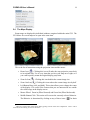
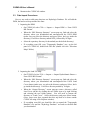
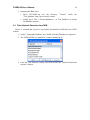
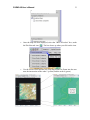
Now click on the "Select Outlet" icon [
]. It's the third one after the
"Show Network" icon [ ]. You will notice that when you click on the
icon, it changes to a darker grey color. What this means is while the button
is selected a new behavior for the Middle-Button of your mouse is active.
Do not try to "Box-Zoom" after you have activated this button.
•
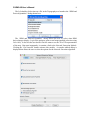
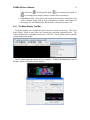
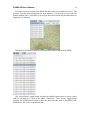
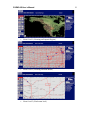
Click near the end of the stream with your middle button (see figure
above). A good place to do it, is where the direction changes in the green
stream right before the junction.
•
The software automatically finds all the pixels in the terrain, whose
drainage path crosses the point we defined. Then it outlines the contour
around those points (This contour line is the Basin Divide). Click the
"Home" icon to get a full view of the basin and the basin divide.
•
Deselect the "Select Outlet" icon [
2. River Network Topologic Analysis
].