1
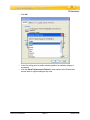
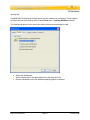
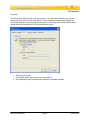
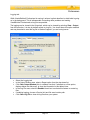
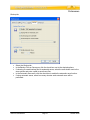
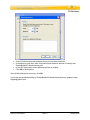
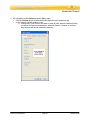
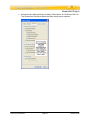
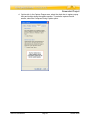
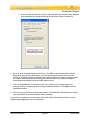
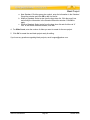
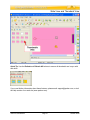
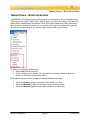
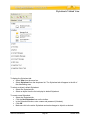
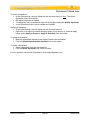
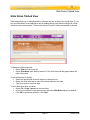
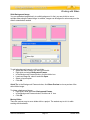
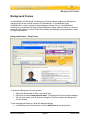
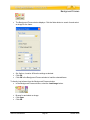
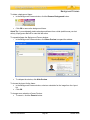
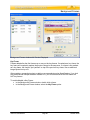
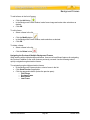
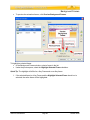
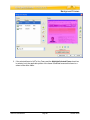
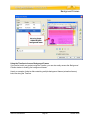
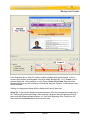
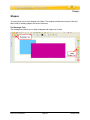
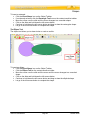
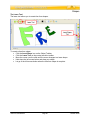
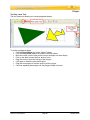
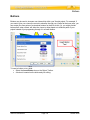
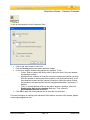
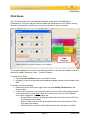
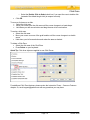
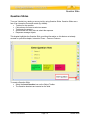
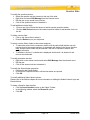
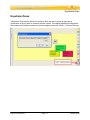
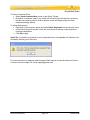
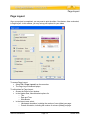
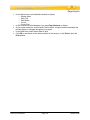
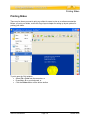
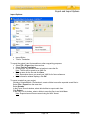
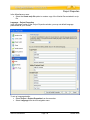
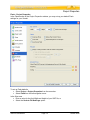
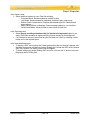
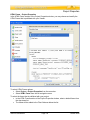
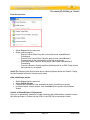
Working with Slides Slide Background Image: You can embed an image directly to a slide background. In fact, you can do this to one or multiple slides using the same image. In addition, images can be aligned in various ways on the slide or stretched as needed. To add a background image to a slide or slides: Select the slide or slides you want to work with. Right click and select Background Frames. In the Background Frames window, click the folder icon. Locate an image file, select it and click Open. Select a Layout option. Click OK. Quick Tip: In the Background Frames window, click Show Preview to view a preview of the select frame image. To delete a background image: Right click a slide and select Background Frames. In the Background Frames window, click the red ‘X’ icon. Click OK. Moving Slides There are various ways to move slides with in a project. The easiest way to do it is while working with thumbnails. VB6 Pro User Manual Page 73 October 2008