1
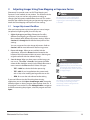
Using the Workflow Area or the File Menu
To load images using the Workflow Shortcuts Area or the File
menu:
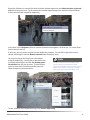
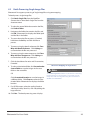
1. Click Load Bracketed Photos in the Workflow Shortcuts area
OR
Select Load Bracketed Photos from the File menu.
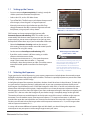
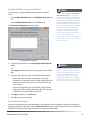
The Select bracketed photos dialog displays.
Note
If you check the Show intermediary
32-bit HDR image box, you will be
able to save the pre-processed 32-bit
image in an HDR image file format such
as Radiance or OpenEXR. Saving the
32-bit HDR image is useful when you
want to be able to process the image
with other tone mapping settings later
without having to pre-process and
merge your bracketed photos again.
However, you will still need to preprocess and merge the photos if you
want to use exposure fusion.
You will have to click the Tone Mapping
/ Fusion button to go to the next step if
you check this box.
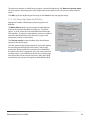
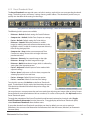
Selecting bracketed photos
2. Drag and drop the files into the Selecting bracketed photos
dialog
OR
Click Browse. A dialog displays prompting for location of the
files.
3. Select the files to load, using one of the following methods:
• Click the first file, then press and hold the Control key
(Windows) or Command key (Mac). While holding down the
Control or Command key, click each of the other files you
wish to select.
Note
The order of the files in a bracketing
sequence does not matter.Photomatix
Pro systematically sorts the image files
based on the exposure information
retrieved from the EXIF data. If the
exposure information is not available
in EXIF data, Photomatix Pro uses the
relative brightness levels of the photos.
• Click the first file, then press and hold the Shift key. While
holding the Shift key down click the last file. This will select
all the files in-between the first and last file.
4. Click Open (Windows) or Select (Mac).
5. Click OK to pre-process the files.
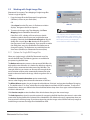
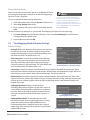
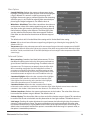
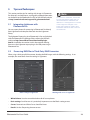
Entering Exposure Values
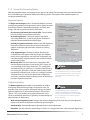
If the exposure information cannot be located in the metadata of the image files, Photomatix Pro displays a
dialog prompting for input of the relative Exposure Values for each image. Photomatix Pro also displays this
dialog if two or more source images share the same exposure information.
Photomatix Pro User Guide
6