1
Repeat these steps until you have assigned all the fixtures you wish to use. Once a fixture has
been assigned the yellow LED on the relevant flash button will be illuminated.
If the fixture you wish to use is not stored on the console you can either download it from a
fixture library with the optional cable, use a memory module with fixtures stored on it, or you can
create a fixture on the console.
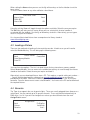
4.2 Editing/Creating a Fixture
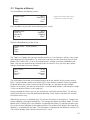
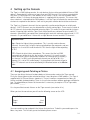
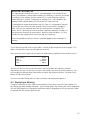
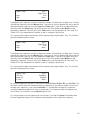
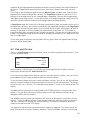
Assign/Patch
Back
Fixtures
Generics
FixtProfiles
AutoPatch
Aux’s
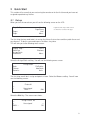
From this menu select the FixtProfiles soft-key. From the next menu select the Create/Edit softkey. You can now choose one of the fixtures stored on the console and edit this if it is similar to
the fixture you want to choose. Alternatively you can create a whole new fixture.
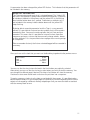
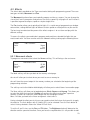
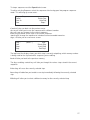
If you want to edit an existing fixture use the middle keys to scroll through the available fixtures.
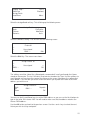
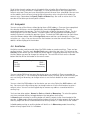
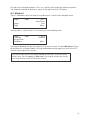
Once you reach the correct one press Edit. This will bring up an edit screen.
Edit Profile: Dimmer
Back
Ch+
Ch-
Dimmer
DMX 001
Delete
Insert
Edit
The middle line provides information on what attribute is currently selected, for instance
Dimmer. The line immediately below shows you the channel number of the associated attribute,
in the example above DMX001.To change attributes use the Ch+ or Ch- keys. The options you
have available are Delete, Insert, or Edit.
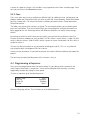
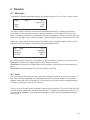
Delete will allow you to remove that attribute from the fixture. Insert allows you to add an
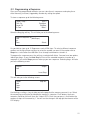
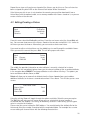
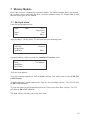
additional attribute, for instance a second colour wheel. Press Insert. This will take you to a new
screen:
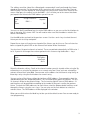
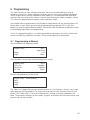
Edit Profile: Ch01
Name: Other
DMX: 007
Home: 000
Back
OK
Using the soft-key Name will toggle through the options available. Select the one you require.
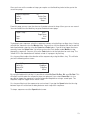
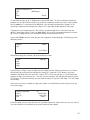
The DMX key will take you to a screen where you can select which channel number is
associated with the attribute. Use the Up or Down keys to do this. Alternatively you can type a
value in using the flash buttons.
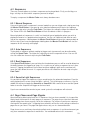
Please note you are not setting the DMX address. You need to look at the attribute file for the
fixture and select the number associated with the required attribute. For example lets assume
we are editing a 6 channel fixture with the following characteristics:
16