1
Scheduling Scan Tasks
If you then make these updated files available on one or more central servers
on your network and configure your remaining network nodes to “pull” the
updated files from those servers, you can
• Schedule network-wide .DAT file roll-outs for convenient times and with
minimal intervention from either administrators or network users. With
VirusScan Scheduler’s Task Properties dialog box, you can determine
when each network node will poll the server for updated files.
You might, for example, specify one convenient update time when you first
deploy VirusScan, but set AutoUpdate to trigger at a random interval
within 60 minutes of that time, or set a schedule that phases in or rotates
.DAT file updates among different parts of the network. To learn how to
schedule AutoUpdate or other tasks, see “Enabling tasks” on page 153.
• Split roll-out administration duties among different servers or domain
controllers, among different regions of wide-area networks, or across other
network divisions. Keeping update traffic primarily internal can also
reduce the potential for network security breaches.
• Reduce the likelihood that you will need to wait to download new .DAT
files. Traffic on Network Associates servers increases dramatically on
regular .DAT file publishing dates. Avoiding the competition for network
bandwidth enables you to deploy your update with minimal interruptions.
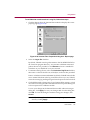
Other advanced AutoUpdate options allow you to back up existing .DAT files,
install the .DAT file update, reboot the updated computer, if necessary, or run
particular programs after successful updates. A set of AutoUpdate property
pages controls the options for this task—click each tab in the Automatic
Update Properties dialog box to configure them.
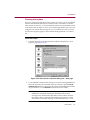
To configure AutoUpdate, follow these steps:
1. Select the AutoUpdate task shown in the Scheduler window, then click
in the Scheduler toolbar.
NOTE: AutoUpdate runs according to the schedule you set for it in
its Task Properties dialog box. To open the Task Properties dialog
box instead, select the AutoUpdate task, then click
in the
Scheduler toolbar. To learn more about setting a task schedule, see
“Enabling tasks” on page 153.
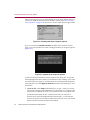
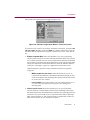
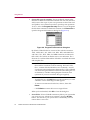
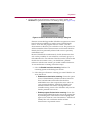
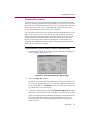
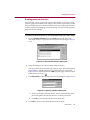
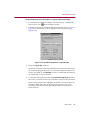
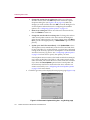
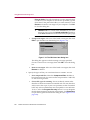
The Automatic Update dialog box will appear (see Figure 6-17 on page
175).
174
McAfee VirusScan for Windows 95 and Windows 98