1
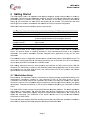
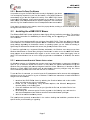
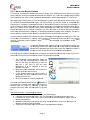
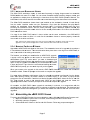
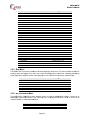
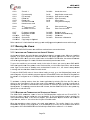
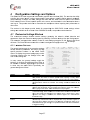
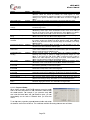
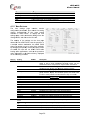
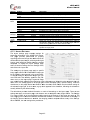
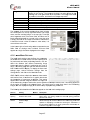
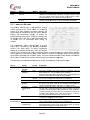
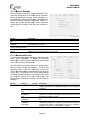
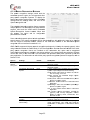
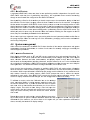
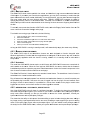
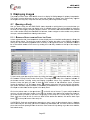
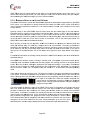
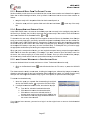
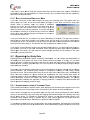
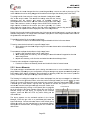
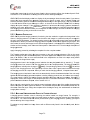
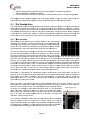
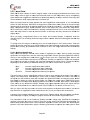
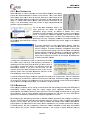
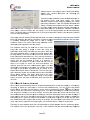
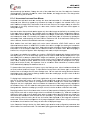
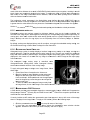
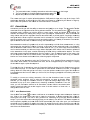
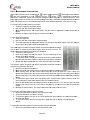
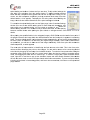
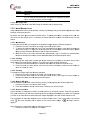
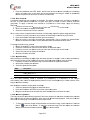
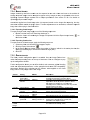
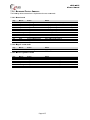
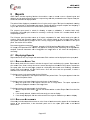
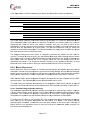
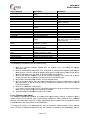
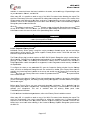
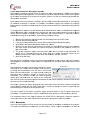
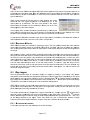
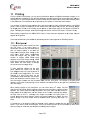
eRAD P PACS V Viewer Ma anual 2.2.1 INITIATING N A BROWSER SESSION To use the eRAD PAC CS active-X viewer, v you ne eed a worksta ation connectted to a netw work with acce ess to the eRAD D PACS serve er, and a sup pported web browser. Lau unch the web browser and d enter the U URL of the eRAD D PACS serve er into the add dress line. Th he URL depen nds on your ffacility’s configuration. If it is not configured d as the brow wser’s home address, a ask your y system a administrator for the URL. The URL can n be a hostname e or an IP add dress. The following examp ples are all accceptable eRA AD PACS UR RLs: pa acs.hospital.c com htttp://pacs.hos spital.com htttps://192.168 8.0.1 When the browser reaches the eRAD PACS se erver, it displays the Main n page. Figure 2.2 2-1 shows eR RAD PACS’s default Main page. Note that your y main pa age may appear diffferent due to o customizatio on. Regardles ss of which URL you entered, e eRAD PA ACS forces yo our connection n to use secure HT TTP if the se erver is config gured to provide secure s comm munications to t your workstatio on. If HTTPS is required, you y may be promp pted to verify the t digital certificate. You can find f instructio ons on how to o accept the digita al certificate and save iti as a trusted ke ey in your brrowser in the e eRAD PACS Op perator’s Manual. Figu re 2.2-1 eRA AD PACS Maiin Page 2.2.2 SIGNING ON FROM THE BROWSER To sign on n to the eRAD D PACS serve er, you must possess a un nique user acccount, assign ned by your syystem administra ator. The user account is used u to identiffy you throug hout the systtem. This allow ws eRAD PA ACS to download your personal profile from m the server, providing you u with the sam me custom in nterface regarrdless of your lo ocation. eRAD D PACS also o uses your account a inform mation to tag g your actionss automaticallly, so you do no ot have to ex xplicitly enter your identific cation informa ation each tim me you create e, modify or d delete data. All version ns of the Main n page contain sign on fields on the lefft side of the p page as well as a series o of tabs near the top and runnin ng the width of o the page. The T tabs are u used to accesss different eR RAD PACS p pages. Before yo ou sign on, the e only pages available are the Main pag ge and the Inffo page. Enter your User ID and passw word in the fie elds on eRAD D PACS’s Ma ain page. Notte that both the User ID and passworrd are case ssensitive. By d default, eRAD D PACS take es you to th he Worklist pa age after it verifies v your a account inforrmation. If yo ou wish to go o to a differrent page, chose c your preferred p sta arting point ffrom the pull-down menu u just bene eath the account ID and pa assword field s. Click on S Sign On, or pre ess the return n key, to co ontinue. n Summary – Signing On Instruction La aunch Interne et Explorer orr other supporrted browser. Enter your eRA AD PACS server URL from m your Favorrites list, or byy typing the IP address into the ddress textbo ox. ad Enter your Use er ID and password. Both are a case senssitive. Click C the Sign On Button. Pag ge 5