1
•
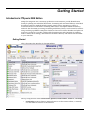
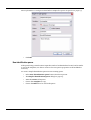
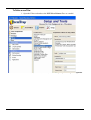
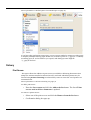
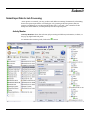
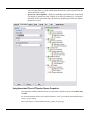
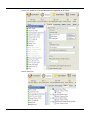
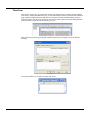
Queues window is used to manage queues. The concept of the queue is central to
FTSpooler, and queues are normally allocated to specific delivery points (printers).
Each queue allows document identification, splitting, re-direction, formatting and
delivery. Before starting design of queues please first use the Setup window to configure FTSpooler settings and the Data Folders window to reload resource files.
•
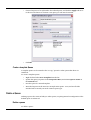
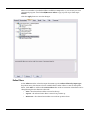
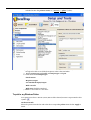
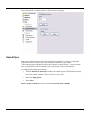
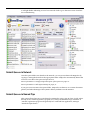
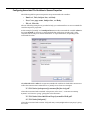
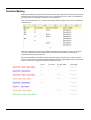
Data folders is used to manage resource files sucj as forms (designed in FTDesign),
rule files which identify and split incoming files and substitution files. Use this after
configuring FTSpooler via Setup. Use this window to update forms or rule files or to
add new substitution files.
•
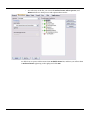
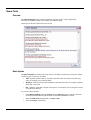
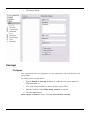
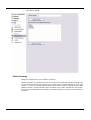
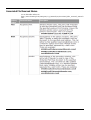
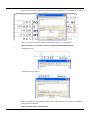
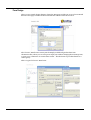
Archive stores job processing and delivery information, and allows searching for
information. Query searches for specific attributes of a document or job. Troubleshooting shows errors and expkanations of the errors.
•
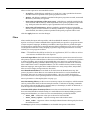
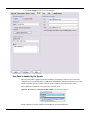
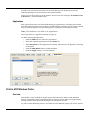
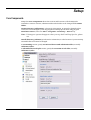
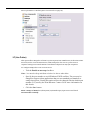
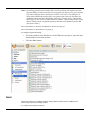
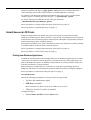
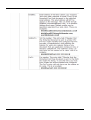
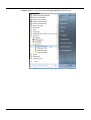
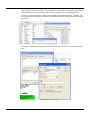
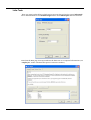
Setup window configures FTSpooler settings. This is the first screen to visit after
installation. Configure printer licenses, email server parameters, define input methods
and set locations for resource files. Once FTSpooler has been set, you will rarely neet to
access this screen.
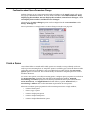
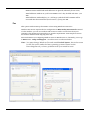
To access the online user manual, press the F1 button from any screen in FTSpooler, or click
the blue question mark icon and select User Manual from the popup menu. F1 is context
sensitive.
To access the online Knowledge Base from FTSpooler, click the blue question mark icon and
select Knowledge Base from the popup menu.
To view FTSPooler product information, click the blue question mark icon and select About
from the popup menu.
Immediately after Installation
We recommend allocating a special Windows "FormTrap User account" for the Spooler.
Reasons for this are here Notes on writing to network drives.
Update to number of printers or other features:
We send you a .zip file that contains an update to your settings. Stop the "FormTrap Service".
Use Settings Merger (FormTrap group of programs) to add the new feature(s) and restart
the service. Check the addition(s) you ordered is installed.
Move existing Version 7 to a new Server:
Install software, move the entire %fthome% folder to the same location on the new server.
Upgrade from Version 6.4:
Install software, do not start the FormTrap Server, see Version Upgrade on page 124. Data
folders need not be rebuilt. Printers will need to be re-allocated.
Upgrade from Version 6.3 or earlier:
Install software, do not start the FormTrap Server, see Version Upgrade on page 124. You will
need to rebuild the form set in FTDesign. Printers will need to be re-allocated.
2