1
BankStep Overview
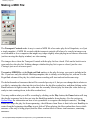
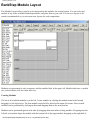
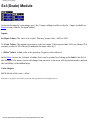
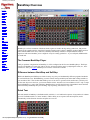
The basic (if simplified) chain of events is: Bank sequencers are stepped by clock pulses; the values from the Bank
Sequencer may be combined and modified in innumerable ways, and eventually they end up going to the MIDI
module as Note, Velocity, etc., values. The clock pulses that stepped the sequencers are used as timing events to
trigger the MIDI Notes.
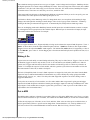
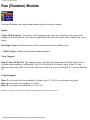
Clock pulses are created by a Clock modules, as well as other modules that can generate Logical gate and trigger
outputs such as Bank Sequencers which have settable gate and trigger outputs for each stage in addition to the Value
stage outputs. Clock modules have 4 outputs: regular clock, plus clock/2, /3 and /4 (you can see the LED for each
output flash as the Clock module ticks).
Out to MIDI
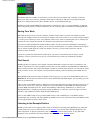
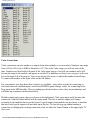
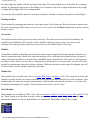
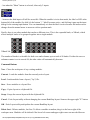
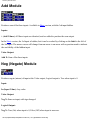
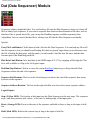
The MIDI module combines 4 channels in one module. When you click on the MIDI button you will see a very large
field of connection buttons set up in 4 columns, one column for each MIDI channel (or for each note in Drum mode).
At first the only inputs you will need to set are Clock, and Note. Other values are either preset to default values, or
may be ignored until you have a specific need to change them. Volume defaults to 127, Velocity defaults to 112.
You will see these levels on the MIDI module as little bar meters. Blue for Velocity, Green for Volume.
The MIDI module has a number of cool features you will want to become familiar with eventually, such as the
ability to set delay-on for each note, automatic volume fade in and fade out, and micro tone tunings using Pitch
Bend. For a complete description of these and other features, see the MIDI Module page.
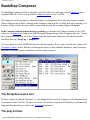
BankStep can make standard MIDI files that can either be used directly such as a web page MIDI file, or imported
into a composition program for further modification. See the Composer page for information on making MIDI files.
Saving Your Work
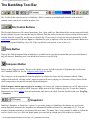
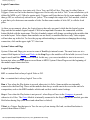
Individual patches are always saved as a Snapshot, available on the toolbar as a camera icon. Whatever patch is
showing in the Snapshot will be the one that gets the changes, and you do not have to worry about loosing a snapshot
- it is always saved. When you create a new Snapshot (camera icon), whatever snapshot patch you are working on is
copied to the a new snap at the top of the list. The delete snap button removes this last snap.
Files can be saved and loaded in the normal Windows manner; also the current state of BankStep is automatically
saved on exit and loaded again on startup. You can force this unnamed quick save anytime with the menu File/Quick
Save or with the toolbar Quick Save (disk icon) button. Conversely, you can reload a Quick Save with the
File/Revert menu command.
Layouts are separate files that define the module layout. Layouts are saved with the files but may be created
file:///C|/vbp/BankStep/Help/alldocs/overview.htm (3 of 5) [9/28/2002 8:56:49 PM]