1
Artemis User Manual
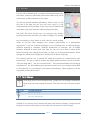
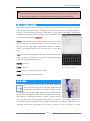
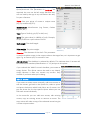
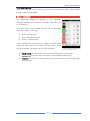
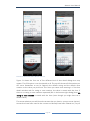
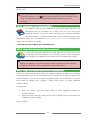
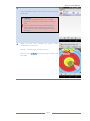
If the active database contains changes compared to its last snapshot it is displayed
here as well.
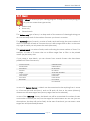
If you try to restore a snapshot and your active database contains changes (i.e.
unsaved information). You will get a warning! Make sure you know what you’re
doing if you ignore this warning, because you will overwrite your active
database!
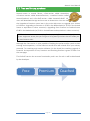
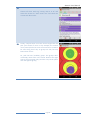
3.5.6.2 Local backup to and restore from SdCard
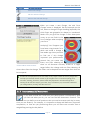
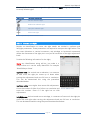
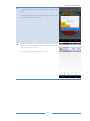
The default name for your snapshot is the current date and time. This
guarantees that all snapshots are unique. You can also name your
snapshot yourself. If you are a coach and have several athletes databases
and their backups, it might be a good idea to prefix the date and time with
the athletes name (e.g. VANDENBERGSjef-2015-01-07-103718) Snapshots to
SdCard can be found in the folder:
/sdcard/Artemis/Backups/<databases>
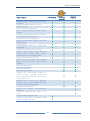
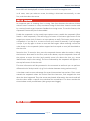
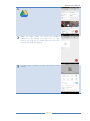
3.5.6.3 Google Drive backup and restore (Premium feature)
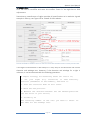
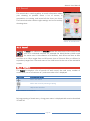
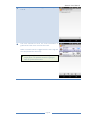
If you have Premium features you and want to be extra safe in case
something disastrous happens to your device, you can make backups to
your Google Drive. Backups can be restored from Google Drive as well.
Please be careful when you have two devices with the same account. Both
devices can backup and restore the same database snapshots from the same
Google Drive account. Do not accidentally overwrite backups!
3.5.6.4 Google Drive Database Synchronization (Coached feature)
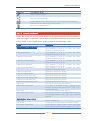
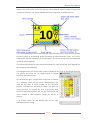
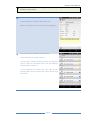
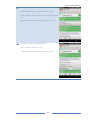
There is an auto-synchronization feature (in Coached mode only) where you can setup
a share between you and your coach/trainer/etc. It allows you to regularly upload your
active database to the cloud and your coach/trainer/etc. can download it in Artemis
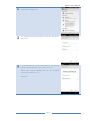
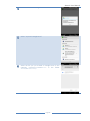
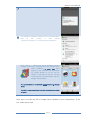
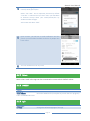
and follow or analyze your progress. Follow these steps to setup database
synchronization
Prerequisites:
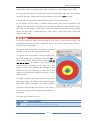
1. Both the archer and the Coach need to have upgraded Artemis to
ArtemisCoached
2. Both the archer and the Coach need to have a Google Drive account and the
Google Drive app installed
Steps to follow:
Page 66