1
User Guide
Files
Search for a file that is saved on your device
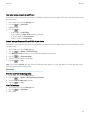
1. On the Home screen, click the Media icon.
2. Press the
key > Explore.
3. Navigate to the file.
To view the file, click the file. Depending on the file type, the file might not appear in its original format.
Related topics
About files and attachments, 86
Search for a file that is saved on your organization's network, 97
Search for a file that is saved on your organization's network
To perform this task, your work email account must use a BlackBerry® Enterprise Server that supports this feature. For more information, contact
your administrator.
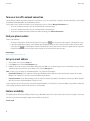
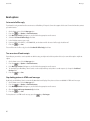
1. On the Home screen or in a folder, click the Files icon.
2. In the Go To field, type the path for the file.
3. If necessary, type the credentials that you use to connect to your organization's network.
To view the file, click the file. Depending on the file type, the file might not appear in its original format.
Related topics
About files and attachments, 86
Search for a file that is saved on your device, 97
Save a file from your organization's network to your device
To perform this task, your work email account must use a BlackBerry® Enterprise Server that supports this feature. For more information, contact
your administrator.
When you save a file from your organization's network to your BlackBerry device, the file is saved in its original format.
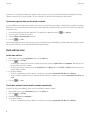
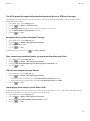
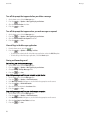
1. On the Home screen or in a folder, click the Files icon.
2. Find and highlight a file.
key > Copy.
3. Press the
4. Navigate to a location.
5. Click a folder.
key > Paste.
6. Press the
Related topics
Search for a file that is saved on your organization's network, 97
Send a file as an attachment, 87
97