1
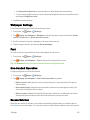
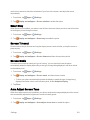
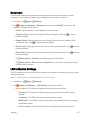
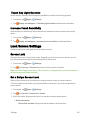
Contacts Settings
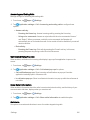
Choose options for contacts, including choosing how contacts display, importing and exporting contacts, and more.
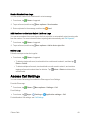
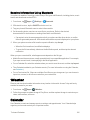
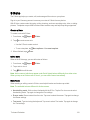
You can access Contacts Settings in two ways:
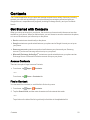
n From the Contacts app: From home, tap Contacts.
Contacts > More options > Settings > n From the Settings menu: From home, tap settings > Contacts.
Apps > Settings > Application
For details about Contacts settings, see Contacts Settings.
Add a Contact
You can add contacts directly from the Contacts application. Enter details such as name, phone numbers, email addresses, mailing addresses, and more.
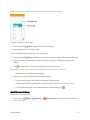
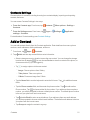
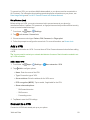
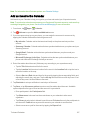
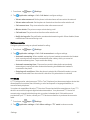
1. From home, tap 2. Tap Apps > Contacts.
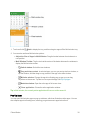
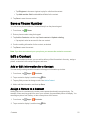
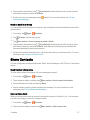
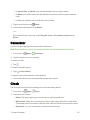
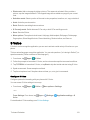
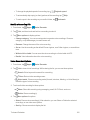
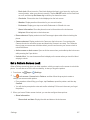
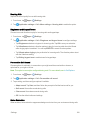
Add, and then tap contact fields to enter information. l Select a storage account or location to save the new contact. You can change the storage location later by tapping . You can choose Device to store the contact on the phone, or choose an account (if you are logged in).
l Tap to assign a picture to the new contact:
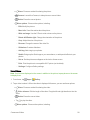
o Image: Choose a picture from Gallery.
o Take picture: Take a new picture.
o S Note: Choose an image from S Note. l Tap the Name field to use the keyboard to enter the full name. Tap fields.
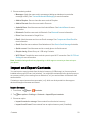
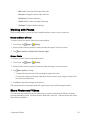
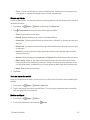
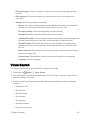
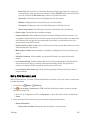
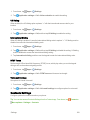
for additional name l Tap the Phone number field, and then enter the phone number. Tap to add another Phone number. Tap to choose a label for the number. If you add more than one phone number, you will be prompted to choose a default phone number. The default phone number is the one your phone will use in most cases.
l Tap beside Email to enter an email address. If you add more than one email address, you will be prompted to choose a default email address. The default email address is the one your phone will use in most cases.
l Tap Groups to assign the contact to a group.
Contacts
51