1
ADD NEW STUDENT
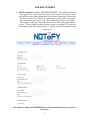
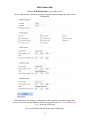
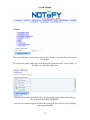
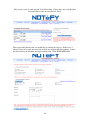
Add New Student by clicking ADD NEW STUDENT. You will then be directed
to the page below. Notice you have a place for the student’s first and last name
and a place to enter contact information for up to three contacts for each student.
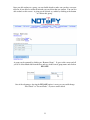
You may also place the student in a certain group or groups. (These are groups
that you may have previously set up. Those instructions will be covered later.)
For example, if they play Varsity Football, you can click on that option under
groups. You can add the student to as many groups as warranted. If you do not
know which groups this student belongs to, you can wait and add students to their
groups later.
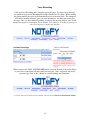
Don’t forget to click on the SUBMIT button at the bottom of the page (not shown on
this image).
3