1
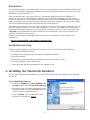
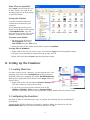
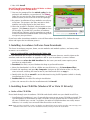
What Files are Installed?
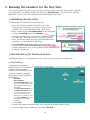
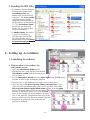
In C: accpc you will find this set
of files. There is no need to do
anything with any of them except
as specified below.
Saving this Manual:
Copy this Emulator Manual to
a convenient location on your
computer.
We recommend creating a new
folder on the C: drive and naming
it Accordance files. You will
copy and save various files to this
location, including this manual.
To create a new folder:
1.Navigate to the C: drive in
My Computer and select
New Folder from the File menu.
2.Enter the name of the folder on the label in place of untitled.
To copy files in Windows:
1.Right-click on the file you wish to copy, then choose Copy from the drop-down menu.
2.Navigate to the location to which you want to copy the file.
3.Right-click and choose Paste from the drop-down menu.
B.Setting up the Emulator
1.Creating Shortcuts
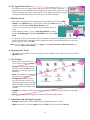
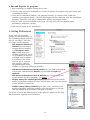
You may want to create “shortcuts” to two program files: the
emulator itself (file name: BasiliskII.exe) and possibly the
BasiliskII Preferences program (file name: BasiliskIIGUI.exe).
Both of these programs will be found in the accpc folder on
your C: drive.
1.Right-click on the file and choose Send to: Destop. This
will add a shortcut icon to the Desktop.
2.If you wish you can drag this shortcut icon to the
Windows Task Bar, Start button or Startup folder.
Whenever you want to access these programs, simply double-click the shortcut icon.
2.Configuring the Emulator
You need to take several important steps to prepare the emulator for the installation of
Accordance:
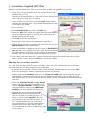
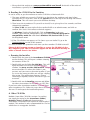
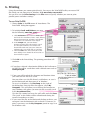
Launch the BasiliskII Preferences program by double-clicking the shortcut or the file
BasiliskIIGUI.exe. You will see this window with rows of tabs:
–7–