1
GRT Avionics
Mini-X Installation, Setup & User Manual
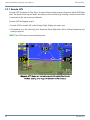
G-Meter Activation & Display
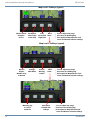
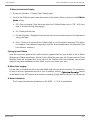
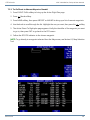
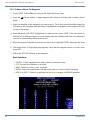
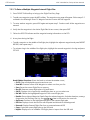
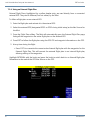
1. Access the Set Menu > Primary Flight Display page.
2. Scroll to the G-Meter options near the bottom of the screen. Select an option on the G-Meter
Mode setting:
a. Off- Does not display. Note that even when the G-Meter Mode is set to “Off,” all G force
data is recorded during data logging.
b. On- Displays all the time
c. On with Min/Max- Displays all the time with the minimum and maximum Gs experienced
during the flight
d. Auto- Comes on if a preset Auto G-Meter High or Low Threshold is exceeded. This allows
it to replace Trim Indicators temporarily until the G limits settle below the threshold. (See
Trim Indicator notation.)
Setting Up the G-Meter
Enter the maximum (positive limit) and minimum (negative limit) of your aircraft in the G-Meter
Minimum and Maximum settings. Set the Caution limits the same way; the G meter turns red if the
Max/Min limits are exceeded, and turns yellow if the Caution limits are exceeded. Your aircraft
designer may have established caution levels, or you can choose your own.
G-Meter Data Logging
G-force data is recorded with all of the other AHRS data during a demo recording. For instructions
Feature
on how to record a permanent record of your G readings, see the
of the Week on the GRT website for automatic recording of flight data or Section 7 of this manual.
G-Meter Limitations
The G-meter has the same limitations as the AHRS: +/- 10 G of acceleration.
Revision A5
46