1
You may also check the Silhouette Cut Settings. If you are cutting with a depth
that is too shallow, you may need to adjust your cutting settings or blade
cap/setting according to the type of paper or media you are trying to cut. Use the
Test Cut button to ensure your settings are set up correctly for the media type
you are using prior to going through the entire cutting process. If the test cut
does not work, you most likely need to re-adjust the settings. If the test cut
works, the actual cut job should work.
referring to the driver. The driver is contained on your installation CD, or in the
case of downloading the software may be obtained from
www.silhouetteamerica.com in the Support section. The driver is actually not
necessary for proper use of the software, but may be used to quiet the Windows
Plug & Play feature which tries to find hardware drivers when new devices are
connected. After re-installing the driver, you should no longer receive this
prompt to install.
If you find for any reason that there are areas not giving a clean cut, you may also
wish to select to use the Double Cut option in the Silhouette Cut Settings to
ensure any problem areas are given an extra pass during the cut job.
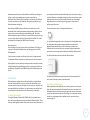
NOTE: You may see a threatening message from Microsoft during driver
Images are not aligned when cut
When cutting regular paper or cardstock that does not have its own adhesivebacking, please ensure you have loaded your paper onto your cutting mat. This
issue may be experienced if you are not using the cutting mat properly or are not
using it with materials that would require the use of a cutting mat.
If you are using the cutting mat, you will want to ensure the mat's liner has been
removed to expose the sticky surface so that your material is being held down in
place firmly during the cutting process. If the mat has lost its adhesive quality for
any reason and is not holding the paper firmly in place, this may cause your
paper to drift as it is being cut.
If you are using the cutting mat and your paper is being loaded onto the cutting
mat correctly and held firmly in place, you may be experiencing this issue if you
have loaded your cutting mat or material into the Silhouette lined up with the far
left-hand side of the machine, as opposed to lining up the cutting mat or material
with the raised guide. If the cutting mat or material being cut is not lined up
correctly with this guide and is not being initially grabbed between the two white
rollers, you would experience the issue of your cutting mat or material drifting as
it is being cut and your image would not be aligned properly.
New Hardware Wizard appears each time Silhouette is powered on
If your computer is asking you to install the software (even though it is already
installed), this is likely when you are turning on the Silhouette or if you have
unplugged the USB and are plugging it back in. Your computer is simply thinking
there is a new hardware device it has not yet recognized. You may safely
navigate through the automatic recommended installation as it simply is
installation that mentions the driver is a potential risk or has not passed
Windows logo testing. Please note that the driver has been tested extensively
and will safely work with Windows XP, Windows Vista, and Windows 7. Click on
the "Continue Anyway" button and proceed with the driver installation process.
Unload Media is displayed immediately after loading (SD and CAMEO models only)
This is not an error. Once you have selected one of the loading options, whether
or not you have actually loaded anything into the machine, the Silhouette will
think that material has been loaded and await further action to cut either through
your computer or through a SD card. As it is waiting to cut, the initial option
displayed will show Unload Media. This is displayed in case you had loaded your
material incorrectly or if it was not loaded into the machine straight. After the
cutting process has ended, you will likewise be shown this option displayed to
unload your material.
If there is no material actually loaded yet and the Enter key was accidentally
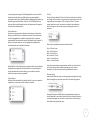
pressed, you may simply press the Unload Media button and then scroll over to
again find the loading options on the Silhouette SD's LCD screen to properly load
your material to cut.
Cutting mat stuck in Silhouette (SD model only)
Turn on the Silhouette SD and press the arrow keys on the LCD screen of your
Silhouette until the Unload Media option is displayed. Once displayed, press the
Enter key. If the mat is not fully ejected, please perform these actions again until
the mat is fully ejected. You may alternately power off the Silhouette SD and
manually pull the mat from the machine.
Silhouette is loud during operation
Please lift the Silhouette's lid to ensure any tape that is connecting the motor to
the side of the unit has been removed. If this was not previously removed, this
would be the cause of the noises experienced when your machine was powered
44