1
BIOMETRIC ENROLLMENT
After you have registered for an Online Secured Exam your Test Taker homepage will update and
provide information on how to complete the Biometric Enrollment process. If you need assistance
registering for your exam, or you do not have access to your homepage, please contact your Test
Sponsor. The Biometric Enrollment process will include capturing a photo and may include Keystroke
Analytics (repeatedly typing a short phrase); depending on the Exam you are taking.
Photo Biometric Enrollment
Please ensure your workstation meets all technical requirements and you have correctly installed your
webcam and microphone before you begin. Biometric Enrollment should be completed a minimum of
24 hours before your scheduled Testing Session.
Log in to your Test Taker homepage using the username and password provided in the email that
KRYTERION sent to you when you created your Test Taker account. Upon test registration for your
exam, your Test Taker homepage will update to include a Biometric Enrollment section. To complete
Photo Biometric Enrollment, click Take Photo.
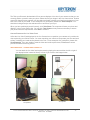
The To Configure your Adobe Flash Player Settings screen displays a live view from your camera to allow
for Webassessor to access your camera and microphone.
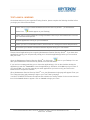
The Adobe Flash Player Settings dialog box, as shown below, should automatically appear over the top
of the “Your Live Camera” box . Follow the instructions below to configure the appropriate settings.
If the dialog box shown above does not automatically appear, follow the instructions below based
on the type of computer you are using for your test session.
Windows
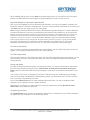
If the Adobe Flash Player Settings dialog box does not automatically appear, right-click on the “Your Live
Camera” box and select “Settings…”. You must also follow the instructions below, under Selecting the
Adobe Flash Player Settings, to prepare your computer.
Macintosh
If the Adobe Flash Player Settings dialog box does not automatically appear, right-click or press the
Control button and click on the “Your Live Camera” box and select “Settings”. You must also follow the
instructions below, under Selecting the Adobe Flash Player Settings, to prepare your computer.
7776 S. POINTE PARKWAY WEST, SUITE 250, PHOENIX, AZ 85044 WWW.KRYTERIONONLINE.COM
Version 2.9 2/11/2009
-7-