1
BVEssentialsAdminGuide
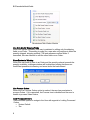
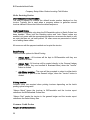
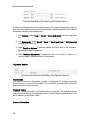
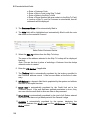
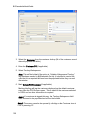
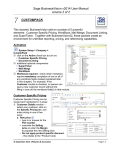
a. Enter a Customer Code
b. Enter a Ship to Code in the Ship To field
c. Enter a Name in the Ship To field
d. Enter a Phone Number with area code in to the Ship To Field
e. Look up a Ship To, and if a Customer is not selected, then all
addresses will be displayed.
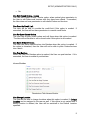
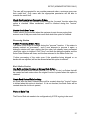
3. The Customer Name will be automatically filled in
4. The Note field will be highlighted and automatically filled in with the note
that exists on the customer’s record.
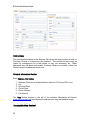
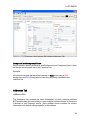
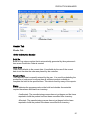
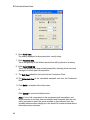
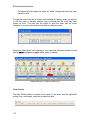
Sales Order>Customer Section
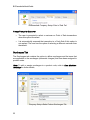
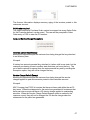
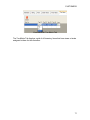
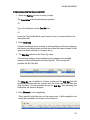
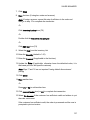
5. Select the Ship To address from the Ship To lookup
The name of the address selected in the Ship To lookup will be displayed
beside it.
Note: This can be done in place of selecting a Customer from the lookup
when the order is created.
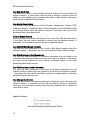
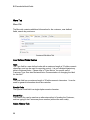
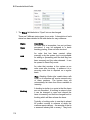
6. Enter the PO Number, if applicable
7. The Territory field is automatically populated by the territory specified in
the Customer address record. It can be over-ridden at the time of order
entry.
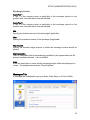
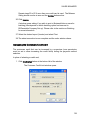
8. A/R Balance is a dynamic field that is populated by the system and reflects
the value of all unpaid invoices.
9. Credit limit is automatically populated by the Credit limit set in the
Customer record. If the user has been granted permission to do so, they
can over-ride the credit limit to allow an order to be processed.
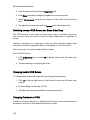
10. Other Orders is automatically populated by the total of all Orders entered
and saved, that have not yet been posted to the General Ledger
11. Available is automatically populated by the system, displaying the
difference between the Credit Limit and the A/R Balance and the Other
Orders values.
108