1
GPS Applications
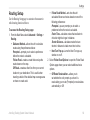
To save the entire track log:
1. Press MENU twice > select Advanced > GPS
Applications > select Tracks.
2 Select Save. A message asks if you want to save the
entire track.
3. Select Yes to save the track. A Saving Track message
shows followed by the Saved Track page.
Use the Saved Track page to rename the track, view the
track distance, calculated area, and color for the track on
the Map page. Changing the color of a dog’s saved track
also changes the pointer color on the Dog Tracker page.
To save a portion of the track log:
1. Press MENU twice > select Advanced > GPS
Applications > select Tracks to open the Tracks
page.
2. Select Save. A message appears asking you if you
want to save the entire track.
3. Select No to save only a portion of the track log. The
entire track appears.
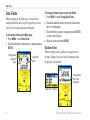
4. Use the ROCKER to move the pointer to the point on
the track line that you want to be the beginning point,
and press ENTER.
5. Use the ROCKER to move the arrow to the point
on the track line to be the ending point, and press
ENTER. A “Saving Track” message appears followed
by the Saved Track page.
6. Select OK.
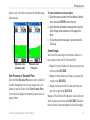
To view a track on the map:
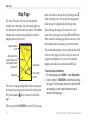
On the Saved Track page, select Map to open the
Map page. A map showing the entire track appears.
Begin and End markers and user location are added
to the track.
Astro Dog Tracking System Owner’s Manual41