1
CONNECTIONS
5
COM 2 CONNECTION
If your computer contains an internal modem assigned to COM2, you can free up the COM2 hardware port on
the rear panel of your computer by assigning your internal modem to COM3 or COM4. The */2**(5 can then
be installed on COM2. If your computer has an external modem connected to COM2 you can alternately connect
the */2**(5 or the modem to the port. If you wish to leave your modem permanently connected to COM2,
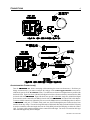
you will need to purchase an I/O card with additional COM ports. COM2 is usually a male 9-pin (DB9) or 25pin (DB25) connector on the rear of the computer. If COM2 is a 25-pin type, it requires the use of the 25-pin
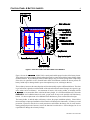
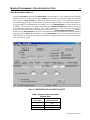
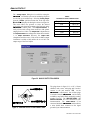
to 9-pin serial adapter with the serial cable shown in figure 2. Do not attempt to connect the */2**(5 to
a parallel port, which are typically female 25-pin (DB25) connectors that look very similar to a 25-pin serial port.
COM3 OR COM4 CONNECTIONS
If your computer has more than 2 COM ports, COM3 and COM4 may either be DB9 or DB25 type connectors
depending on the hardware installed in your computer. If the COM port you choose is a DB25 type, you will
need to use the 9-pin to 25-pin serial adaptor shown in figure 2.
TESTING THE SERIAL CONNECTION & TROUBLESHOOTING
To test the serial connection between the */2**(5 and your personal computer, you must first install the
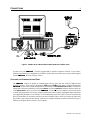
*/2**(5 software (see SOFTWARE INSTALLATION). Connect the serial port cable between the */2**(5
and the PC as shown in Figure 2. Turn the */2**(5 ON then run the */2**(5 352*5$0. When the
Mission Menu appears, click the LINK TO G-Logger button. A Windows progress gauge will appear showing
the status of the linking process and the ARM LED on the */2**(5 will illuminate. Once the link has been
successfully established, the current status of the */2**(5 will appear in the lower right-hand corner of the
Mission Menu.
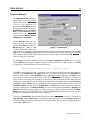
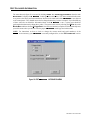
To check or change the current COM port setting, select COM Port from the Preferences pull down menu bar
at the top of the Mission Menu. You do not have to set the baud rate, number of bits or parity for the COM port
you have selected because the */2**(5 352*5$0 automatically sets the selected port to the proper values.
If you have trouble getting your computer to communicate with the */2**(5, verify the COM port is enabled
in your computer’s CMOS RAM setup. Some computers, with only two hardware COM ports, have their COM2
port intentionally disabled in the CMOS RAM and their internal modem assigned to COM2. Even though an
internal modem can be assigned to COM3 or higher, which would allow the COM2 hardware port to be used
for another purpose, many computer makers configure their machines this way because some older programs
that use the modem will not work through any port address other than COM2.
Some serial port cables do not mate snugly with the serial port connector and an intermittent connection may
result. To prevent this, tighten down the thumbscrews on the serial cable connectors at both the */2**(5
and personal computer ends of the cable.
390-00002-05 Rev 10 Nov 2003