1
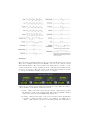
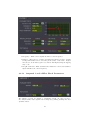
LFO 1. When the audio level at this input reaches –40dB, it will toggle the state
of the exponential toggle wave. Notice that the Patching section’s MOD/TRIG
IN is set to Left In.
4.4.8
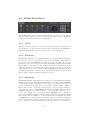
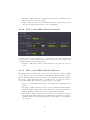
Effect Block MODULATION Section
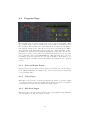
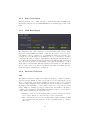
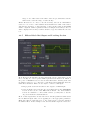
Nearly every block, aside from the Ampmod, Envelope and the audio input
blocks, feature a MODULATION section which allows modulation from the
H3000 Function Generator. This means that these 28 parameters can receive
mod signals from the Function Generator, the four Soft Keys, or ten different
MIDI sources. Beyond that, each of these parameters allow you to set a minimum and maximum value for when the source is at its minimum or maximum
output. By offering this extensive modulation control, effects can be controlled
with very good precision, even via a MIDI keyboard.
4.4.9
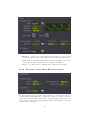
Effect Block PARAMETERS Section
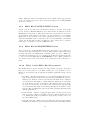
Adopted from the original H3000 architecture, the Expert page is where you
can view all of these parameters at one time. This was part of the many magic
modules that made the H3000 such a dynamic studio processor. While you
can still view the Expert page, we’ve duplicated the Expert parameters specific
to each block in the Effect Block PARAMETERS section. These parameters
are described with each of the effects block parameters in the following sections.
4.4.10
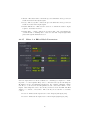
Delay 1 and 2 Effect Block Parameters
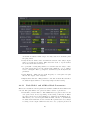
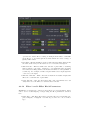
The H3000 Factory plug-in features two independent, sweepable delay lines
that can be tempo-synced or modulated using any of the available sources.
This section details the various parameters available within the Delay 1 and 2
blocks.
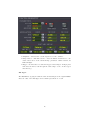
• Beat Grid – The Beat Grid allows you to set delays rhythmically by dragging the (X) marker horizontally, automatically quantizing the delay to
musical beat divisions. Bars, beats and their subdivisions are displayed
as vertical lines. The number of Bars and Beats displayed are dependent
upon the Tempo and the chosen Meter. The Bars are labeled across the
top and are divided into beats (the heavy vertical lines) and sixteenth
note subdivisions (the light vertical lines). Holding the Command or Ctrl
keys (for Mac and Windows respectively) while dragging this marker will
disable quantization.
• Delay Amount – Instead of using the Beat Grid, you may set the delay
time by typing a number, in milliseconds, into this Delay Amount text
box. This method will not quantize the delay, thus providing control over
the entire 600mS range.
• Delay Mod Amount – This controls how much the delay modulation input
will affect the delay time. Short delay amounts set here will result in subtle
19