1
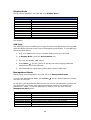
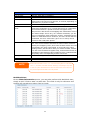
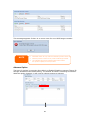
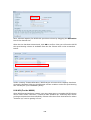
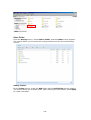
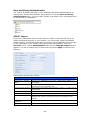
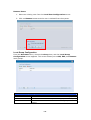
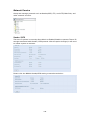
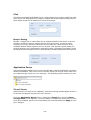
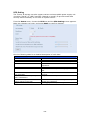
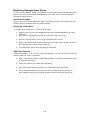
If a corrupt print job is sent to a printer, printing may suddenly fail. If your print jobs
seem to be locked up, pressing the Remove All Documents button to clear the
print queue may resolve the issue.
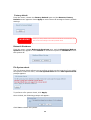
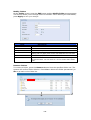
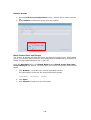
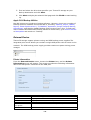
You can configure Thecus IP storage to act as a printer server, letting all PCs
connected to the network utilize the same printer.
Windows XP SP2
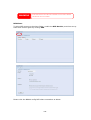
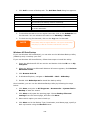
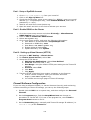
To set up the Printer Server in Windows XP SP2, follow the steps below:
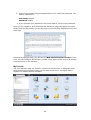
1. Connect the USB printer to one of the USB ports (preferably the rear USB
ports; front USB ports can be used for external HDD enclosures).
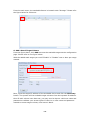
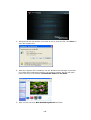
2. Go to Start > Printers and Faxes.
3. Click on File > Add Printer.
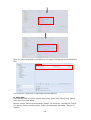
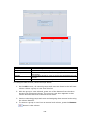
4. The Add Printer Wizard appears on your screen. Click Next.
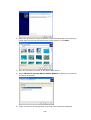
5. Select the “A network printer, or a printer attached to another
computer” option.
6. Select “Connect to a printer on the Internet or on a home or office
network”, and enter “http://Thecus IP storage
IP_ADDRESS:631/printers/usb-printer” into the URL field.
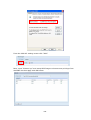
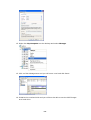
7. Your Windows system will ask you to install drivers for your printer. Select
correct driver for your printer.
8. Your Windows system will ask you if you want to set this printer as “Default
Printer”. Select Yes and all your print jobs will be submitted to this printer by
default. Click Next.
9. Click Finish.
NOTE
• Not all USB printers are supported. Please check Thecus website for a list of
supported printers.
• Note that if a multi-function (all-in-one) printer is attached to the Thecus IP
Storage, usually only the printing and fax functions will work. Other
features, such as scanning, will probably not function.
149