1
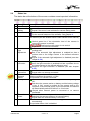
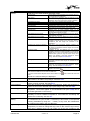
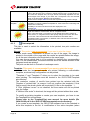
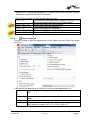
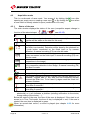
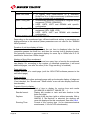
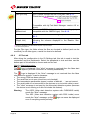
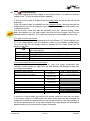
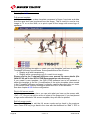
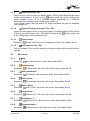
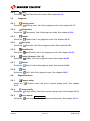
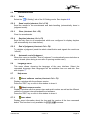
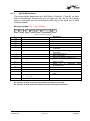
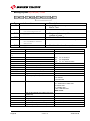
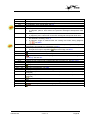
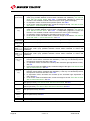
"↑" (up arrow key) "↓" (down arrow key) "Shift" + "↑" In judgment mode, changes the lane number and bib number following the start list order (only possible between mouse button released and validation). Can also be done with the mouse wheel. See 4.4.1. If transponder judgment is used, this function is not available; instead it will scroll up the zoom (green rectangle). In acquisition mode, increase the acquisition speed. See 4.9.2. In full screen mode and WEB mode, scrolls the image to the top. Can also be done with "Shift" + "mouse wheel up". See 4.7. In judgment mode, changes the lane number and bib number following the start list order (only possible between mouse button released and validation). Can also be done with the mouse wheel. See 4.4.1. If transponder judgment is used, this function is not available; instead it will scroll down the zoom (green rectangle). In acquisition mode, decrease the acquisition speed. See 4.9.2. In full screen mode and WEB mode, scrolls the image to the bottom. Can also be done with "Shift" + "mouse wheel down". See 4.7. In race mode and in judgment mode, move the zoom (green rectangle) to the top. (up arrow key) "Shift" + "↓" In race mode and in judgment mode, move the zoom (green rectangle) to the bottom. (down arrow key) "Ctrl" + "Shift" + "↑" (up arrow key) "Ctrl" + "Shift" + "↓" (down arrow key) "→" (right arrow key) "←" (left arrow key) "Ctrl" + "→" "Ctrl" + "←" "Ctrl" + "Shift" + "→" "Ctrl" + "Shift" + "←" "+" "-" Page 90 In judgment transponder validation). In judgment transponder validation). with transponder, change the identification of the competitor following the order (only possible between mouse button released or F5/F6 and with transponder, change the identification of the competitor following the order (only possible between mouse button released or F5/F6 and In judgment mode, moves the time mark of one pixel to the right (only possible between mouse button released and validation). If the key is maintained pressed, the speed of movement increase. See 4.4.1. In acquisition mode, increase the contrast (if the Automatic light adjustment is OFF). See 4.3. In full screen mode and WEB mode, scrolls the image to the right. Can also be done with "mouse wheel up". See 4.7. In judgment mode, moves the time mark of one pixel to the left (only possible between mouse button released and validation). If the key is maintained pressed, the speed of movement increase. See 4.4.1. In acquisition mode, decrease the contrast (if the Automatic light adjustment is OFF). See 4.3. In full screen mode and WEB mode, scrolls the image to the left. Can also be done with "mouse wheel down". See 4.7. In Race mode, Judgment mode, Full screen mode and WEB mode, scrolls the image to the right (on block). Can also be done with the mouse wheel. See 2.8. In Race mode, Judgment mode, Full screen mode and WEB mode, scrolls the image to the left (on block). Can also be done with the mouse wheel. See 2.8. In Race mode, Judgment mode, Full screen mode and WEB mode, scrolls the image to the right (half screen). See 2.8. In Race mode, Judgment mode, Full screen mode and WEB mode, scrolls the image to the left (half screen). See 2.8. Zoom in (in Full Screen mode and WEB mode). Zoom out (in Full Screen mode and WEB mode). Version 1.8 3434.501.02