1
Chapter 4
Using Buttons and Keyboard Commands in Library Master Extensions
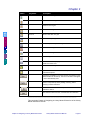
The Library Master Extensions module uses the standard Sage MAS 90 or 200
buttons that you use to perform a specific activity. You can also use the keyboard
to perform many of the same functions. The following table describes each button
and provides the keyboard variation of the button when applicable.
Button
C
O
N
T
E
N
T
S
S
T
B
A
C
K
I
N
D
E
X
Page 24
Keyboard
Description
TAB
Advances you to the next field on a window.
In a grid, pressing the TAB key moves focus from cell to cell. At
the end of the row, pressing TAB moves the key to the next row.
ENTER
Advances you to the next required field on a window and allows
you to save changes.
SPACEBAR
You can use the spacebar to clear or select a check box or radio
button field.
BACKSPACE
Deletes the information in a field.
ESC
Closes the current window.
In a grid, pressing the ESC key cancels a cell entry.
DELETE
Deletes information from a field.
HOME
Highlights the first item in a list box or Lookup window.
In a grid, pressing the HOME key moves focus to the first cell of a
row.
END
Highlights the last item in a list box or Lookup window.
In a grid, pressing the END key moves focus to the last cell of a
row.
PAGE UP
Highlights an item in the previous page of a list box or Lookup
window.
PAGE DOWN
Highlights an item in the next page of a list box or Lookup
window.
CTRL+HOME
In a grid, moves focus to the first row in the same cell position.
CTRL+END
In a grid, moves focus to the last row in the same cell position.
CTRL+ENTER
In a grid, adds line feeds to comments.
CTRL+INSERT
Inserts a line.
CTRL+DELETE
Deletes the current line.
ARROW
In a grid, pressing the ARROW keys moves focus from cell to
cell.
F1 in a Field
Displays the pop-up help for the current field.
F1 on a Window
Displays the help for the entire window.
F2
Displays the Lookup window for the current field. Select an item
from the Lookup window and click Select. The item appears in
the field.
Library Master Extensions Manual
Chapter 4: Navigating in Library Master Extensions