1
v. 5.2.0a
Plain Paper Scanning
(Professional Edition Only)
Plain paper scanning allows you to print bubble forms using an ordinary laser printer
and scan the results using a TWAIN compliant image scanner. Because forms can be
printed on-demand on standard sheets of paper, plain paper scanning provides great
flexibility, convenience, and cost savings over dedicated OMR scanning. Additionally,
the hardware required for plain paper scanning can be used for other purposes.
Plain paper scanning reads the students’ responses for each question, stores this
information for each student, and automatically calculates their score based on the
point values assigned to the questions.
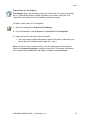
IMPORTANT:
x
See our website (www.fscreations.com) for a list of image scanners that have
been validated for compatibility with the plain paper scanning feature.
x
Although not required, it is strongly recommended that the scanner is equipped
with an automatic document feeder (ADF) in order to be an effective tool for
plain paper scanning.
To get results from a plain paper scanner…
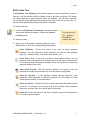
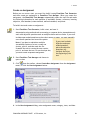
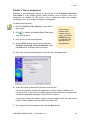
1. Launch ExamView Test Manager and open the class.
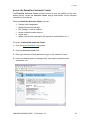
2. Select (highlight) the assignment that you will be scoring.
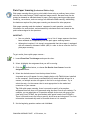
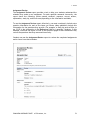
3. Click the
toolbar button, or choose Get Results from Scanner from the
Assignment menu.
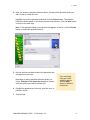
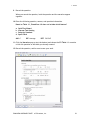
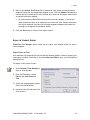
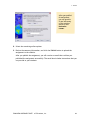
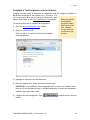
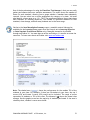
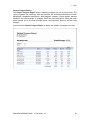
4. Select the desired scanner from the drop-down list box.
A separate entry will appear for every imaging device with TWAIN drivers installed
on the computer. Some scanner manufacturers will install multiple drivers for a
scanner, so multiple entries will appear in the list for a single scanner. Try to
select the entry for the scanner that is most appropriate for the model and
connection of your scanner.
Tip: With plain paper scanning, there is no need to specify a form and an
assignment does not have to be answered using the same form for all students. For
example, you can administer a 50 question multiple choice test with most of the
class using form FSC50AE, but give students with special needs form FSC50AE Jr.
There is no need to sort the forms or specify which forms are being used. The form
information is automatically read in from each sheet as it is scanned.
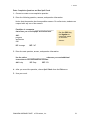
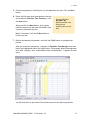
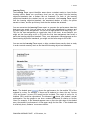
5. Set the beginning question number and click Next.
EXAMVIEW ASSESSMENT SUITE © FSCreations, Inc.
46