1
PrintFleet Optimizer
Using PrintFleet Optimizer
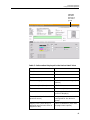
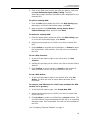
3. Select a device from the Device list.
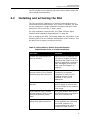
4. Click
under the Close column in the row of the flag you want
to close.
5. Click Confirm to verify you want to close the flag.
Editing flags
After a flag is created and before the trigger has been met, the flag
can be edited at any time.
To edit a flag:
1. On the Notifications menu, click Flag Settings.
2. Select a company from the Customer list.
3. Select a device from the Device list.
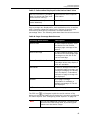
4. Click
to edit.
under the Edit column in the row of the flag you want
5. Make changes to the flag settings as desired.
6. Click
3.7
to save your changes.
Managing groups
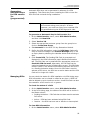
Groups are used to segment devices into useful divisions, such as
by dealer, customer, location, account rep, or any other grouping
you see fit. Each group can have as many subgroups as you need.
Each device can be assigned to one group.
Note
For PrintFleet Optimizer systems that have been
transitioned to PrintFleet Optimizer 2.1 from a
previous version, the following will be
automatically done with regards to groups:
•
Dealers will be transitioned to groups of type
Dealer.
•
Customers will be transitioned to groups of type
Customer, and will retain their hierarchy under
parent Dealer groups.
As of PrintFleet Optimizer 2.1, there is no longer a
restriction that all top-level groups be dealers, that
customers must have a dealer parent, or that other
group types must reside under a customer.
Creating, editing,
and deleting
groups
You can create unlimited groups to properly segment devices. Each
group can have an unlimited number of subgroups.
To create a new group:
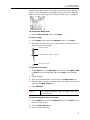
1. On the Settings menu, point to Group Management, and then
click Manage Groups.
62