1
5 Software
Installation
5.1 INSTALLATION ON A Windows PC
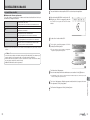
Pre-installation checklist
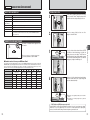
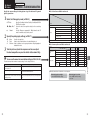
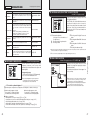
To run this software, you must have the hardware and software described below. Check your
system before you begin the installation.
Operating System✽1
Windows 98 (including the Second Edition)
Windows Millennium Edition (Windows Me)
Windows 2000 Professional✽2
Windows XP Home Edition✽2
Windows XP Professional✽2
CPU
200 MHz Pentium or better recommended (800 MHz Pentium III or better
recommended for Windows XP)
RAM
64MB minimum (128 MB minimum for Windows XP)
256 MB or better recommended
Hard disk space
Amount required for installation: 450 MB minimum
Amount required for operation: 600 MB minimum
(When using ImageMixer VCD2 LE for FinePix: 2 GB or better)
Display
800 × 600 pixels or better, 16-bit color or better
(When using ImageMixer VCD2 LE for FinePix: 1024 × 768 or better)
Internet connection✽3
i To use the FinePix Internet Service or mail attachment function:
An Internet connection or e-mail transmission software is needed
i Connection speed: 56 k or better recommended
✽1 Models with one of the above operating systems pre-installed.
✽2 When you install the software, login using a system administrator account (e.g. “Administrator”).
✽3 Required to use the FinePix Internet Service. The software can still be installed even if you do not have an Internet
connection.
◆ Notes ◆
i Connect the camera directly to the PC using the USB cable (mini-B). The software may not operate
correctly when you use an extension cable or connect the camera via a USB hub.
i When your PC has more than one USB port, the camera can be connected to either port.
i Push the USB connector fully into the socket to ensure that it is securely connected. The software
may not operate correctly if the connection is faulty.
i Additional USB interface board is not guaranteed.
i Windows 95 and Windows NT cannot be used.
i Operation is not guaranteed on home-built PCs or on PCs running updated operating system
software.
i When you reinstall or remove FinePixViewer, the Internet menu and your user ID and password for
the FinePix Internet Service are deleted from your PC. Click the [Register now] button, enter your
registered user ID and password and download the menu again.
1
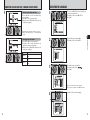
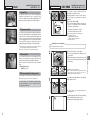
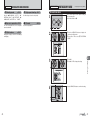
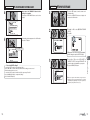
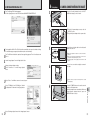
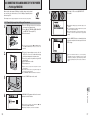
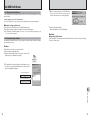
Install FinePixViewer as instructed in the Quick start guide.
◆ Launching the installer manually ◆
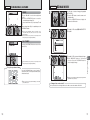
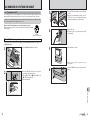
1 Double-click the “My Computer” icon.
✽ Windows XP users should click “My Computer” in the “Start” menu.
2 Right-click “FINEPIX” (CD-ROM drive) in the “My Computer” window and select “Open”.
3 Double-click “SETUP” or “SETUP.exe” in the CD-ROM window.
✽ The way file names are displayed differs as described below depending on your PC settings.
i File extensions (3-letter suffixes indicating the file type) may be shown or hidden. (e.g. Setup.exe or Setup)
i Text may be shown normally or all in uppercase (e.g. Setup or SETUP).
◆ Installing other applications ◆
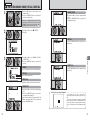
You may see messages for installing ImageMixer VCD2 LE for FinePix. Install this application as
directed by the on-screen instructions.
2
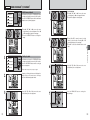
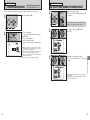
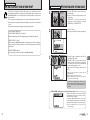
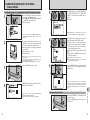
Install DirectX as directed by the on-screen instructions and then restart your PC. If the latest
version of DirectX is already installed on your PC, this installation is not performed.
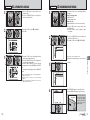
3
After restarting, the USB Video Class Driver would
be installed.
! If the latest version is already installed, this window does not appear.
●
! Do not remove the CD-ROM during this procedure.
●
! If the latest version is already installed, this window does not
●
appear.
! The driver is only installed on Windows XP SP1.
●
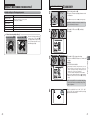
4
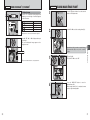
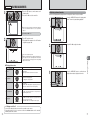
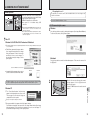
After restarting the PC, a message appears stating “Installation of the FinePixViewer has been
completed”.
5
Software Installation
80
Do not connect the camera to your PC until the software installation is completed.
81