1
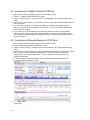
4.1. Searching for PCR primers, a simple search
This example takes you through a quick search for a pair of optimal PCR
primers. To run this search, open Human eIF-4E.seq file and:
1. Choose the "Primers and Probes" option from the "Search" menu.
2. Verify that the "Compatible Pairs" button under "PCR Primers" in the dialog box is checked.
3. Click "Search" to start the search. The "Search Status" progress window appears, and the
message "Search Completed" appears when the search is complete.
4. When the search is complete, two windows open: "Oligonucleotide Sets" and "Selected
Oligonucleotides". You may also check the "Primers & Probes Search Data" (from the
Search menu) window to make sure that the final search stringency is acceptable. OLIGO
automatically reduces search stringency if it does not find any compatible pairs.
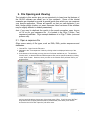
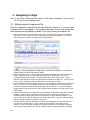
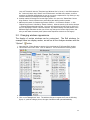
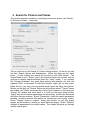
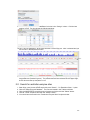
5. There are six sort options on the "Oligonucleotide Sets" and "Selected Oligonucleotides"
windows. The sort order is indicated in the figure below by red arrows:
You may change the sort order by simply clicking at the column name. Option-click (or Altclick) allows for multiple sorts. You may also sort the data by product length or any other
field not sorted in the example above.
9. Click on a primer pair to select this primer pair or double click on a pair to view the "PCR"
window for the selected pair.
10. Choose the primers from the Analyze - Key Info menu or other Analyze menu windows to
view the primer sequence and/or related data.
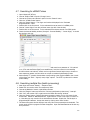
4.2. Searching for PCR primers, an example to show the options
1. Choose the "Primers and Probes" option from the "Search" menu.
2. Verify that the "Compatible Pairs" button under "PCR Primers" in the dialog box is checked.
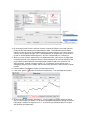
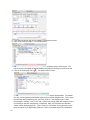
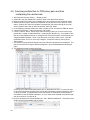
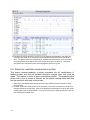
3. Click the "Parameters" button. At this point you see the General Parameters, as indicated at
the top of the window:
This will let you change the search stringency globally, change sequence frequency table
and salt and primers concentration in the reaction mix. By default, the stringency search is
set to "High". If you experience a long search time, you may shorten the search by starting
from a lower stringency type. Otherwise, Oligo will reduce the stringency automatically if
needed, as long as the "Automatically change stringency" box is checked:
4. Choose the "Fair" search stringency.
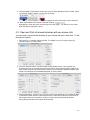
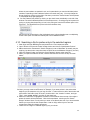
5. Check the "Constraints" and "More Constraints" options. Each sub-search option that will be
active for a given search method has a blue dot on the left. The irrelevant sub-searches
have no blue dots. To the right of this dot you should see an open or closed lock. This
represents whether a given parameter can be changed during automatic stringency search.
You may wish to permanently fix a specific parameter to the displayed value by clicking on
an open lock. The lock should close. Some parameters Oligo is not able to change
automatically. These sub-searches are labeled with grey-out locks. The image below
shows one of the sub-searches in the "More Constraints" window
15