1
OmniSTAR 5220HP User Manual
Appendix D
USB driver for 5220HP
If no appropriate device driver is found, you can download the driver from:
http://www.ftdichip.com/Drivers/VCP.htm
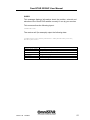
When connecting the 5220HP USB “Data Com” port to your computer, you will
need to install the FTDI drivers, twice. Once the correct drivers are installed, a
pop-up will appear in the lower right corner of your computer screen. The popup will state that new hardware has been installed on your computer.
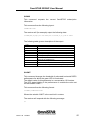
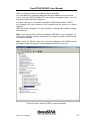
In some cases the hardware is installed as a “Microsoft Serial BallPoint”. If that
is the case, you need to disable the “Microsoft Serial BallPoint” in order for
your computer to recognize the USB “Data Com” port,.
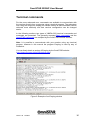
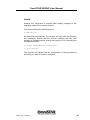
Step 1:
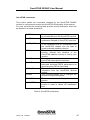
Step 2:
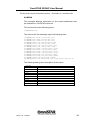
Step 3:
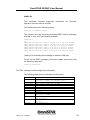
Go into Control Panel and click System.
In the System window, click on the Hardware Tab and
then click on Device Manager.
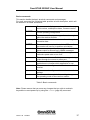
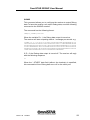
In the Device Manager, select Mice and other pointing
devices from the tree fields and right-click on Microsoft
Serial BallPoint and select disable.
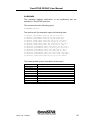
Note:
Do NOT uninstall the Microsoft Serial BallPoint. Uninstalling will only
result in reinstallation once the computer has been shut down or
restarted.
At the time of writing this manual, no USB driver has been officially released
for the 5220HP by the manufacturer.
OmniSTAR has found a workable driver that supports the 5220HP’ USB
functionality.
The driver creates a virtual comport on the connected computer and can be
used as a real comport by connecting different programs to the port.
First get the driver from the OmniSTAR CD or download it from the website:
http://www.omnistar.nl/DOWNLOAD/toolprograms/USB_COMv2.04.zip
unzip it and place it on a temporarily map on your computer.
Then power up the receiver and connect the USB cable to the receiver and
computer.
The computer will ask for the driver for this unknown device, point the
computer to the driver on the map on your computer where you placed the
driver.
Issue 1.32 12/2010
72