1
KEYTEXT 2000
Include simple formatting in text
KeyText is designed to work with simple text. However, in macro mode you can specify key combinations which will
toggle certain text formats on/off, if your word processor supports it.
For example, if you want text like this:
Formats such as bold, underline and italic can be included...
Make a KeyText item like this (using Insert Field Wizard if you wish, to assist with the key combinations):
Formats such as {Ctrl B}bold{Ctrl B}, {Ctrl U}underline{Ctrl U} and {Ctrl I}italic{Ctrl I} can be included...
This should work in most word processors; check your word processor (etc.) documentation for other key combinations
that could be included in a KeyText text item.
Get user input
There are three possibilities here. The first one can be used with Action: Paste or Action: Macro; 2 and 3 only with
Action: Macro.
1) If you have an item which includes repeated variable information, such as a customer name or product code, while the
rest of the text is standard, the Ask field can assist. Ask fields are processed before the item is run or pasted; you specify
the title for the dialog and the question to appear on it, and when it is run the dialog offers a text box for you to fill in the
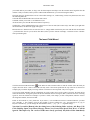
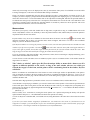
information. On the edit toolbar, press
clicking Next for the Ask wizard.
to use the Insert Field Wizard to set it up, choosing the
button and
You will be asked for a name for the Ask field, and the question to ask. The name will appear on the title bar of the Ask
dialog when the KeyText item is run - and note that after the ask field you can use {name} to repeat the same information.
An example will illustrate this. If you give name as First name and the question as Enter customer's first name,
the wizard will generate a field like this: {Ask "First name" "Enter customer's first name"}. When the item is
run, when it is being pre-processed a dialog will appear asking the question, and the result is filled in in place of
the Ask field.
Once set up with the help of the wizard, the following in an item set to Action: Paste Your order for: {Ask "Product" "Enter product ordered"}
Dear {Ask "First name" "Enter customer's first name"}
I am pleased to inform you that your order for {Product} has now been completed. You should receive…
would, when started, produce 2 dialogs asking the questions, and then paste the result which might be something
like:
Your order for: The Latest Gadget
Dear John
I am pleased to inform you that your order for The Latest Gadget has now been completed. You should
receive…
2) If you have an item set to Action: Macro, you can use the Insert field wizard to make an Input field. Instead of being
asked for the information just before the item begins, a dialog with the title and question you specified appears when the
item reaches that point in the item. The information you enter into the dialog is then typed and the KeyText item
continues. This method is best if there is some variable data in an item which is not repeated, or if you have a loop and
want to enter manually one piece of data on each repetition.
3) If you want KeyText to type a certain amount of text or perform certain actions, and then pause for you to perform
some action before continuing - for example, typing in a filename which varies each time - you can use the {Pause 0} or
simply {Pause} field. When KeyText reaches there it pauses, you can type in the filename etc., and then either press the
[Pause] key or right-click the KeyText icon in the tray to make it continue. If you want to abort the pause, just press [Esc]
or left-click the icon.
Transpose letters in any application
How often do you tpye - sorry, type - a word and find you have mixed up 2 letters? This example shows how you can set
a hotkey to swap them over, and should work in most applications.
10