1
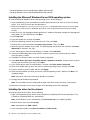
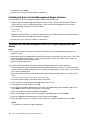
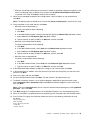
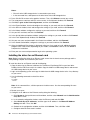
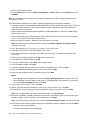
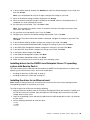
c. In the License Agreement window, click Yes.
d. In the Readme File Information window, click Next. The installation begins.
e. When prompted, click Next ➙ Finish.
6. Click OK to restart your server after the installation is completed.
Installing the driver for a CNA card
To install the driver for a converged network adapter (CNA) card, do the following:
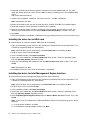
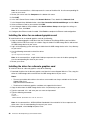
1. Log in to the operating system and insert the ThinkServer EasyStartup DVD into the optical drive. The
ThinkServer EasyStartup DVD runs automatically.
Note: If the DVD does not run automatically, click Run launch.exe in the AutoPlay window.
2. Read the license terms and click Accept.
3. In the installation window, click Driver Installation.
4. Select your server model from the Server Model drop-down list box. Select the operating system
from the Operating System drop-down list box.
5. Select the corresponding CNA card driver from the Select a driver drop-down list box. Then, click
Install.
Note: If prompted, click Yes.
6. Click OK to restart your server after the installation is completed.
Installing the Microsoft Windows Server 2008 R2 operating system and
drivers
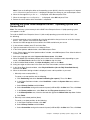
This topic provides instructions on how to install the following operating systems and drivers:
• Microsoft Windows Server 2008 R2 Datacenter Edition with Service Pack 1
• Microsoft Windows Server 2008 R2 Enterprise Edition with Service Pack 1
• Microsoft Windows Server 2008 R2 Standard Edition with Service Pack 1
Installing the Microsoft Windows Server 2008 R2 operating system with
Service Pack 1
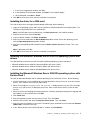
To install the Microsoft Windows Server 2008 R2 operating system with Service Pack 1, do the following:
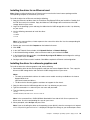
1. Insert the operating system installation disc into the optical drive that you have set as the first startup
device. Then, start the server from the optical drive.
2. When the message Press any key to boot from cd or dvd... is displayed, press any key. If the message
Windows Setup [EMS Enabled] is displayed, press Enter. Wait several minutes for the system to load
the files.
3. When the “Enter your language and other preferences” window is displayed, configure the language and
other options as you need and then click Next.
4. Click Install now.
5. Select the operating system that you want to install. Then, click Next.
6. Read the license terms and select I accept the license terms. Then, click Next.
7. Select the type of installation as you need. The following steps are based on the scenario that Custom:
(Advanced) is selected in this step.
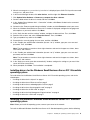
8. In the “Where do you want to install Windows?” window, click Load driver.
Chapter 2. Installing an operating system in legacy mode
7