1
Preferences
English
[TV Display]
Select a display format:
Note
• Stop disc play before you can access to [Preferences].
•
[4:3 Pan Scan] - For a 4:3 screen TV: full-height
display with the trimmed sides.
•
[4:3 Letter Box] - For a 4:3 screen TV: widescreen display with black bars on the top and
bottom of the screen.
•
[16:9] - For a wide-screen TV: display ratio
16:9.
[Progressive]
If a progressive scan TV is connected to this
product, turn on the progressive scan mode.
•
[On] - Turn on progressive scan.
•
[Off] - Turn off progressive scan mode.
Note
• For more detailed description, see “Get started” >
“Turn on progressive scan”.
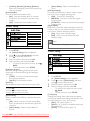
[Picture Setting]
Select a predefined set of picture color settings or
customize the personal setting.
•
[Standard] - Original color setting.
•
[Bright] - Vibrant color setting.
•
[Soft] - Warm color setting.
•
[Personal] - Customize the color setting. Set
the level of brightness, contrast, tint and color
saturation, then press OK.
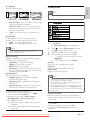
[My Wallpaper]
Select a picture as the wallpaper.
•
[Default picture] - The default wallpaper
preset as the Philips logo.
•
[Saved picture] - A captured video image or
JPEG photo.
•
[Current picture] - Capture a video image or
JPEG photo and save it on the product.
1. Play a video or photo slideshow.
2. Select a video image or photo: press
to
pause, and then press SETUP.
3. Navigate to the option ([Video Setup] >
[My Wallpaper] > [Current picture]).
4. Press OK to confirm.
» One video image or JPEG photo is saved as
wallpaper.
» A newly saved image or photo replaces the
earlier one.
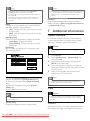
1
Press SETUP.
» [General Setup] menu is displayed.
2
Press to select [Preferences], and then
press to enter the submenu.
3 Select an option, and then press OK.
4 Select a setting, and then press OK.
•
To return to the previous menu, press
BACK.
•
To exit the menu, press SETUP.
[Audio]
Select an audio language for disc play.
[Subtitle]
Select a subtitle language for disc play.
[Disc Menu]
Select a disc menu language.
Note
• If the language you have set is not available on the disc,
the disc uses its own default language.
• For some DVDs, the subtitle/audio language can only
change from the disc menu.
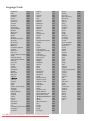
• To select the languages that are not listed in the menu,
select [Others]. Then check the “Language Code” list
at the back of this user manual and enter the respective
language code.
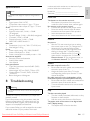
[Parental Control]
Restrict access to discs that are unsuitable for
children. These types of discs must be recorded
with ratings.
1. Press OK.
2. Select a rating level, then press OK.
3. Press the numeric buttons to enter the
password.
Downloaded From DvDPlayer-Manual.com Philips Manuals
EN
13