1
Evaluating Symptoms and Solutions
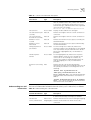
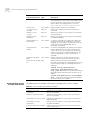
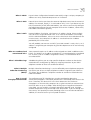
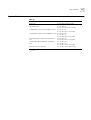
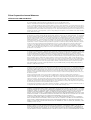
Table 9 Symptoms, Causes, and Solutions
Symptom
Possible Cause
Solution
ISDN LAN Modem has assigned
all available IP addresses.
From another computer attached to the ISDN LAN
Modem, go to the LAN Modem’s main configuration
page. Click Workstations. Select the name of computer
you removed and then click Select. Click Release
Workstation Entry. Reboot the workstation. The newlyadded workstation can now be assigned an IP address.
If you cannot release a workstation entry, connect a
telephone to one of the ISDN LAN Modem’s phone
ports and press **3COK# from the keypad to release
all IP addresses assigned by the LAN Modem.
Although multiple service
providers are configured, all
calls are going to the same
service provider which is a
private network.
You may not have configured the
IP address and the subnet mask
in the Private Network
Parameters window.
From the ISDN LAN Modem’s home page, click Service
Providers and then select the private network profile
you already configured. Enter the IP address and the
subnet mask for the private network.
Clicking Submit in the LAN
Modem’s configuration pages
does not take you to the next
screen.
JavaScript may not be enabled in
your Web browser.
Enable JavaScript via your Web browser’s configuration
options.
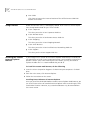
The Windows 95 “Connect
To” window opens upon
launching a Web browser.
Networking is setup for use with
a serial port modem.
To bypass the “Connect To” window:
1 Double-click the Internet icon in the control panel.
2 Clear the check box labeled “Connect to the
Internet as needed.”
3 Click OK.
This allows all outgoing connections to run directly
through your ISDN LAN Modem.
When the handset of a
telephone attached to the
ISDN LAN Modem is lifted, a
dial tone cannot be heard.
A computer on the LAN was
replaced with another one and
now the newly added
computer cannot
communicate with the ISDN
LAN Modem.
There may be two active calls to
different locations thus using
both B channels and leaving no
bandwidth for the voice call.
If there are two independent data calls connected, go
to Manual calling to disconnect one of the active calls.
Bandwidth allocation for this
service provider may be set to
Always use 2 B channels and a
call is currently up.
Either go to Manual calling and disconnect the current
call or go to service providers and change bandwidth
allocation to either Add second B channel as required
or Use one B channel.
The ISDN line cable, power cable
and/or phone cable may not be
firmly connected.
Check all cables and connectors to ensure that they are
inserted securely.
Calls from the analog port may
be blocked.
From the Call Routing window, check the Phone Port 1
and Phone Port 2 boxes which are used for voice call
routing. Make sure that the correct Phone Port box for
that port is checked.
The ISDN LAN Modem has not
released the IP address for the
previous computer and therefore
will not assign a new one
because it allows a maximum of
25.
From another computer attached to the ISDN LAN
Modem, go to the LAN Modem’s main configuration
page. Click Workstations. Select the name of computer
you removed and then click Select. Click Release
Workstation Entry. Reboot the workstation. The newlyadded workstation can now be assigned an IP address.
If you cannot release a workstation entry, connect a
telephone to one of the ISDN LAN Modem’s phone
ports and press **3COK# from the keypad to release
the last IP address assigned by the LAN Modem.
(continued)
103