1
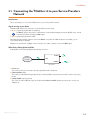
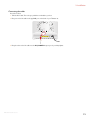
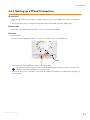
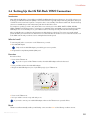
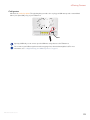
2 Installation 2.4 Setting Up the 3G Fall-Back WAN Connection Introduction Many SOHO (Small Offices, Home Offices) and SME (Small/Medium Enterprises) businesses choose DSL as their access technology for a Wide Area Network (WAN) connection because this is typically cheaper than using leased lines. A dropout of a DSL line can however have expensive consequences due to inaccessibility of the Internet and E-mail. Therefore backup solutions are available that provide an alternative path when the DSL line is down. For example it is possible to switch to 2G / 3G mobile access technologies such as GPRS, UMTS, HSDPA, HSUPA, HSPA+, WIMAX and LTE when internet connectivity is not available via the main WAN connection. By plugging a mobile USB adapter into one of the USB ports of your TG589vn v3, IP connectivity via a 2G / 3G network becomes possible. 3G is an umbrella-term to indicate the third generation mobile telephony technology. The services associated with 3G provide the ability to transfer both voice data and non-voice data. 3G networks are the successors of the 2G networks, such as the GSM networks and provide new services and higher data transfer speeds. What do I need? To start using 2G / 3G as a connection on the TG589vn v3, you need: A mobile USB adapter Only use the mobile USB adapters provided by your service provider. A registered Security Identity Module (SIM) card. Procedure Proceed as follows: 1 Power off the TG589vn v3. If you do not power off the TG589vn v3 first, the mobile USB adapter will not be detected. 2 Insert your SIM card into the mobile USB adapter. 3 Plug the mobile USB adapter in (one of) the USB port(s) of your TG589vn v3: 4 Power on the TG589vn v3. 5 Now your mobile connection is up and ready to use. If you need to remove your mobile USB adapter, make sure the TG589vn v3 is powered off first. Result TG589vn v3 will automatically enable your 3G backup connection when both of the following conditions are met: DMS-CTC-20130614-0000 v2.0 20