1
Navigate User Manual
1.
2.
3.
4.
5.
6.
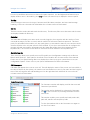
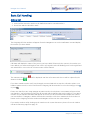
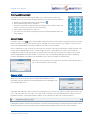
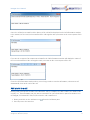
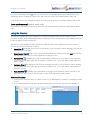
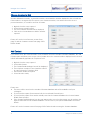
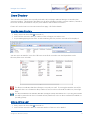
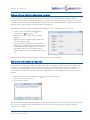
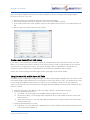
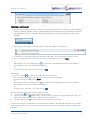
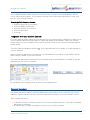
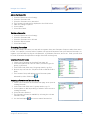
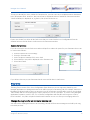
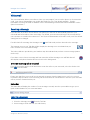
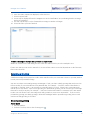
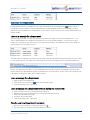
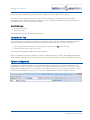
From the Edit menu select Settings
Select the Ring Tunes tab.
From the Type list box select Internal or External
From the Tune list box select the Tune required.
Select the Add button. The new entry will appear in the Ring Tunes list.
Select OK to finish
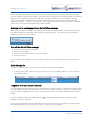
Assigning a ring tune to a specific incoming number
You may wish to assign a ring tune to a specific number so that when you receive a call from a colleague
or customer, for example, you will be able to recognise their call immediately.
1.
2.
3.
4.
5.
6.
7.
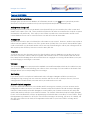
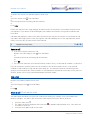
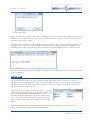
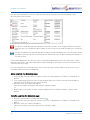
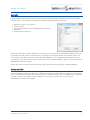
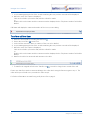
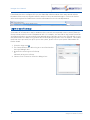
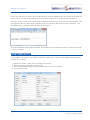
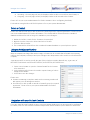
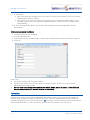
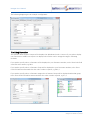
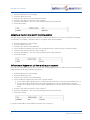
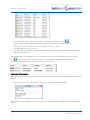
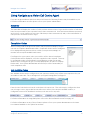
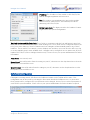
From the Edit menu select Settings
Select the Ring Tunes tab.
From the Type list box select Caller ID
In the Telephone Number field enter the incoming number, either internal or external number
From the Tune list box select the Tune required.
Select the Add button. The new entry will appear in the Ring Tunes list.
Select OK to finish
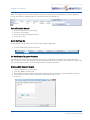
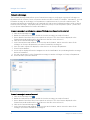
Differentiate a Department call from a call to your extension
If you are receiving Department calls you may wish to distinguish between a call to your User account and
a Department call by using a different ring tune.
1.
2.
3.
4.
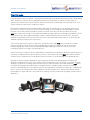
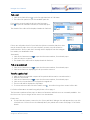
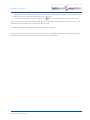
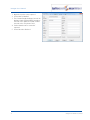
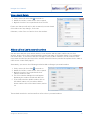
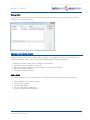
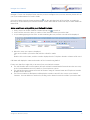
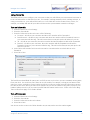
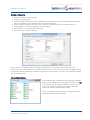
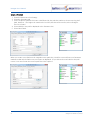
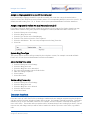
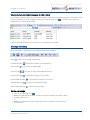
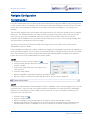
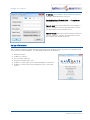
From the Edit menu select Settings
Select the Ring Tunes tab.
From the Type list box select Destination.
In the Telephone Number field enter the relevant number.
a. If you wish to differentiate your User calls from other calls enter your extension number here, or
b. If you wish to differentiate calls to a specific Department, enter the Department extension
number here (please refer to your System Administrator if you are unsure which number to use
here).
5. From the Tune list box select the Tune required.
6. Select the Add button. The new entry will appear in the Ring Tunes list..
7. Select OK to finish
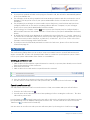
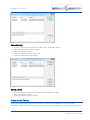
For further information on Departments please refer to page 23.
56
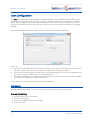
User Configuration
Navigate User Manual v3.2/0413/3