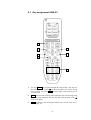
1
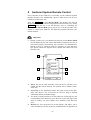
the remote control (see separate user's manual of Harmony One). Select SAM G2 to enter Device Mode for controlling the SAM G2.
5
Activities key: Press this key to view a list of Activities you have
added. Press the button next to the Activity you want to select, and
the Harmony One will control your entertainment system (see separate user's manual of Harmony One).
Important
·
is only available for Activities. In Device
The Power key
Mode the Power key has no function.
·
Even without using an Activity, the user is able to control all
functions of the SAM G2 using the Harmony One in Device Mode.
·
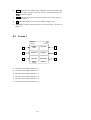
The keys described below to control the SAM G2 refer to the
factory default programming of the Audionet System Remote
Control Harmony One. Understandably, any changes done to this
setup by the user cannot be discussed here.
Tip
·
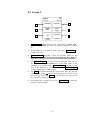
In order to switch the SAM G2 on/off, without using an Activity,
please use the keys Power Toggle , Power On and / or
Power Off on screen 2 (see section 'Screen 2' on page 29). Of
course, it is possible to control the SAM G2 without any Activity,
but to tap the full potential of the Harmony One you need to configure Activities customized to your needs (please refer to separate
manual of the remote control Harmony One).
Note
·
Please read the separate user's manual to your Audionet System Remote Control Harmony One. Activities, Devices and Device Mode as
well as customizing the remote control are discussed there in detail.
26