1
Chapter 3
The Navigator
Running the Resource Utility Conflicts Tool
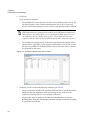
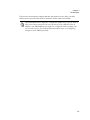
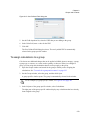
Resource conflicts can occur if bookings for the same date and time require the same
resource, and there are insufficient quantities of the resource to accommodate all the
bookings. When you reserve any resource for which the inventory is maintained (for
example, equipment, personnel, and so on), EMS checks the available quantity and
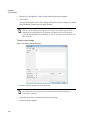
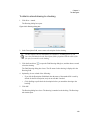
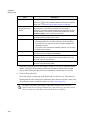
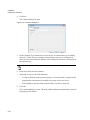
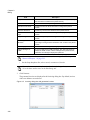
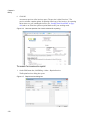
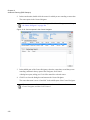
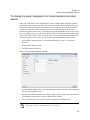
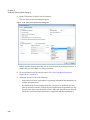
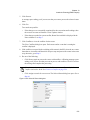
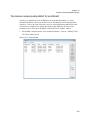
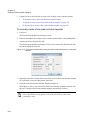
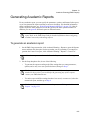
automatically notifies you in an Inventory Conflict message if there is an insufficient
quantity of the selected resource to accommodate your event.
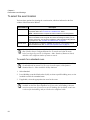
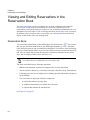
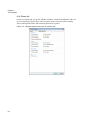
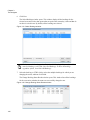
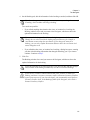
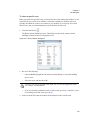
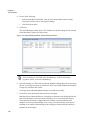
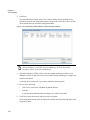
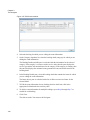
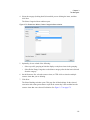
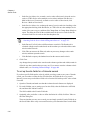
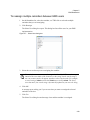
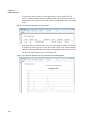
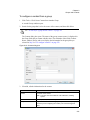
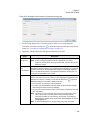
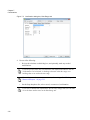
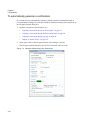
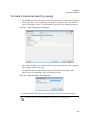
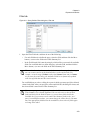
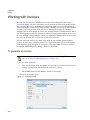
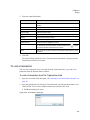
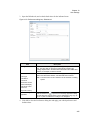
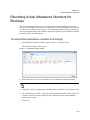
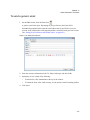
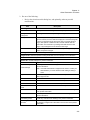
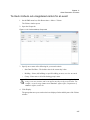
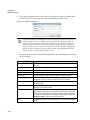
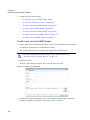
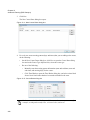
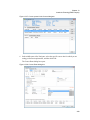
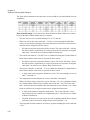
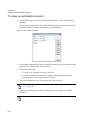
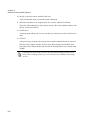
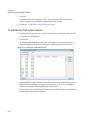
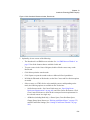
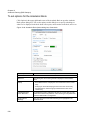
Figure 3-83: Inventory Conflict message
You have the option of dismissing this message and over-committing the resource; however,
although you are aware that the resource has been over-committed, other users will not
necessarily be aware of this fact. If you need to confirm that an over-commitment of
resources does not exist for a single reservation, then you can manually run the Resource
Inventory Conflicts tool from the Navigator to generate an onscreen report that lists the
resources that are in conflict by booking for the reservation.
To confirm that an over-commitment of resources does not exist across multiple
reservations, run any of the various resource usage reports that are available. See
“Statistics reports” in “Generating an EMS Report” on page 321.
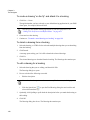
To run the Resource Utility Conflicts tool
1. Open the reservation in the Navigator. See
•
“Opening a reservation directly in the Navigator” on page 79.
•
“Opening a reservation through the Reservation Book” on page 80.
•
“Opening a reservation through a group” on page 80.
•
Chapter 4, “Search Tools,” on page 195.
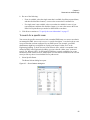
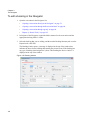
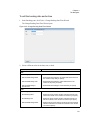
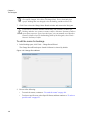
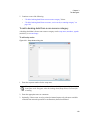
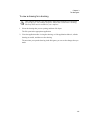
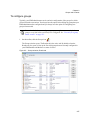
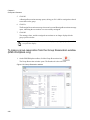
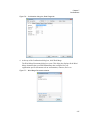
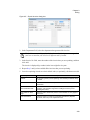
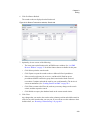
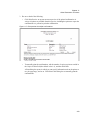
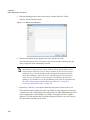
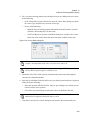
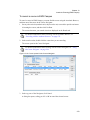
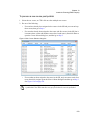
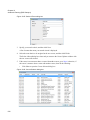
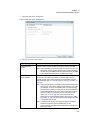
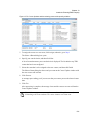
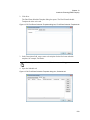
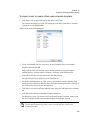
2. In the Bookings pane, click Tools, and then click Resource Inventory Conflicts.
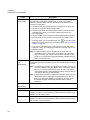
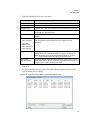
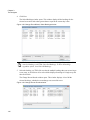
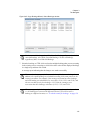
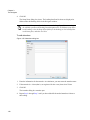
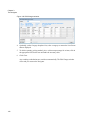
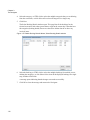
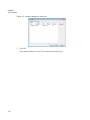
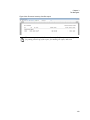
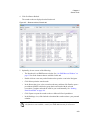
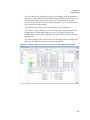
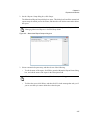
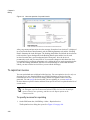
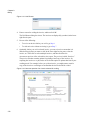
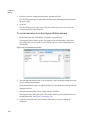
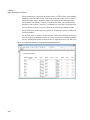
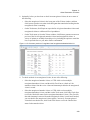
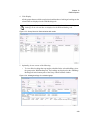
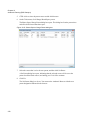
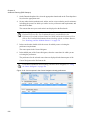
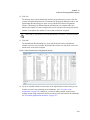
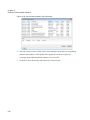
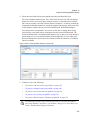
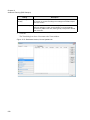
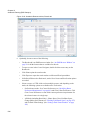
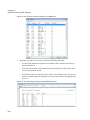
The Resource Inventory Conflicts report opens onscreen. The report lists the resources
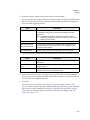
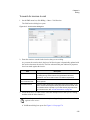
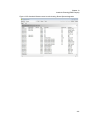
that are in conflict by booking. See Figure 3-84 on page 193.
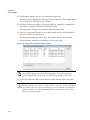
3. Optionally, edit the booking details for the involved bookings to resolve the conflict.
192