1
User Manual
Chapter 7: Inventory Control System (ICS)
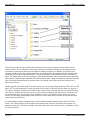
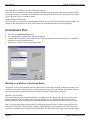
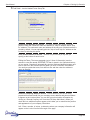
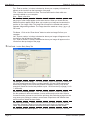
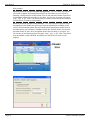
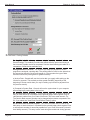
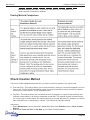
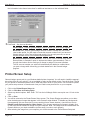
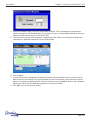
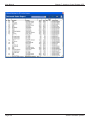
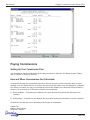
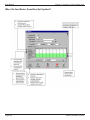
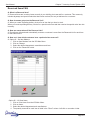
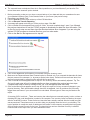
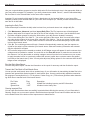
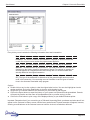
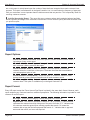
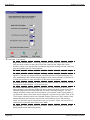
Field Detail - Account Lookup Screen
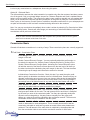
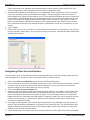
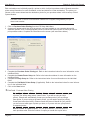
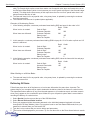
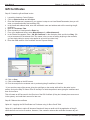
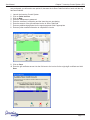
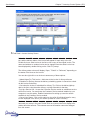
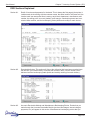
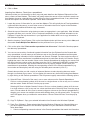
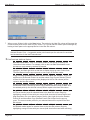
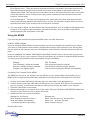
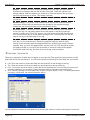
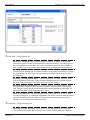
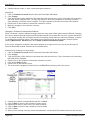
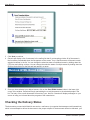
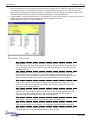
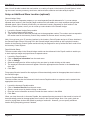
Sales Invoices - The customer’s name, phone number, invoice date, invoice number, and the delivery status of the invoice will appear for each entry in the list.
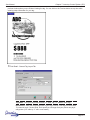
Double click on a sales invoice in the list to view a copy of the original invoice. The
name and address on a sales invoice can be changed once the sales invoice has
been displayed by double-clicking on the “Sold To” prompt.
The delivery status column will display “Open,” “Partial” or “Delivered,” depending on
the status of the items on the invoice.
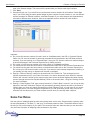
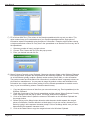
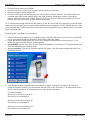
You can also right click on an invoice to access any of these options:
- Update Notes For This Invoice - Add notes to the invoice for future reference.
- Schedule For Delivery Access the delivery scheduling system in Genesis to schedule this invoice for delivery.
- View when the invoice is scheduled for delivery. Tip: Click on the delivery/pickup
date in the list to view the entire delivery or pickup schedule for that day.
- Set Up a Service Call - Access the Customer Service module to schedule a service
call for this invoice. You must have the Customer Service module installed on your
computer to use this option. Detailed instructions for setting up a service call are
available in the Customer Service module.
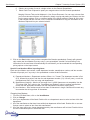
- View a List of Items - Click on this option to view a list of individual items for every
invoice displayed in the list on your screen (instead of a list of invoices).
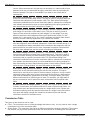
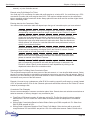
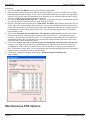
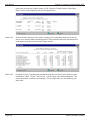
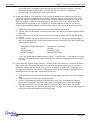
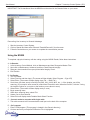
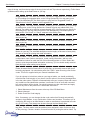
Customer Accounts - Each name that appears in the list owes you money now, or
has owed you money in the past. Double click on a name in the list to display information about that account. The customer account information cannot be changed
from this screen.
Page 179