1
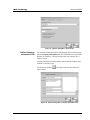
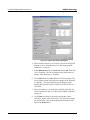
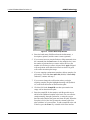
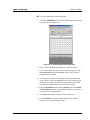
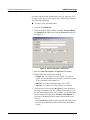
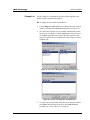
xMAP Technology Luminex 2.3 Software 10. To add a patient file to the batch, click Load Pa List. An Open Patient List File dialog box opens. See Figure 28. If you do not want to add a patient list to the batch, skip to step 11. Note: If any of the acquire sample commands within the template of the batch has an unassigned Sample ID, the system applies the first patient ID in the list to the unassigned sample acquisition command. The system appends any remaining patient IDs to the end of the command list in the order as they appear in the patient list. Figure 28 Open Patient List File Dialog Box 11. Select a patient file to append to the batch and click Open. The system appends the patients to the batch. If all patient IDs in the batch are identified, the system appends the patient list items to the first empty location following the batch’s last command list activity. See “Add a Patient List” on page 58 for information regarding the patient file format. 12. Verify the dilution factor settings, and adjust as necessary. See page 60 for more information. 13. Select Save and Load (default) or Save Only. 14. Click Finish. If you selected Save and Load, the Run Batch tab opens displaying the batch, including the samples you added. If you selected Save Only, the system becomes idle as it waits for you to initiate a command. 15. If you selected Save and Load, load the plate using the Eject/ Retract button, then click Start Plate. Open a Batch Use this procedure to open an existing batch. The batch name and description appear on the Run Batch tab when you load the batch. You can open “Saved Only” batches with this procedure. To open a saved batch for an acquisition: 1. Click Open Batch. The Open Batch dialog box opens. PN 89-00002-00-110 Rev. A 51