1
Virtual Console Animation
An Animation widget is a complete tool to operate with the RGB Matrices of your project.
It displays several graphical elements to fully control a matrix during live shows.
Most importantly, it allows you to define a number of so called "custom controls" to quickly recall
presets, colors and properties and apply them immediately to a running matrix.
Introduction
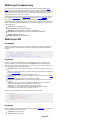
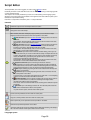
When clicking on the
icon, an Animation widget will be added to your Virtual Console.
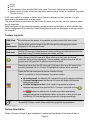
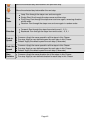
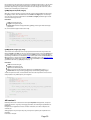
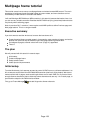
By default, the widget will display 4 elements:
On the leftmost side, a slider to control the playback and the intensity of a RGB Matrix.
The slider movement can be associated to an external controller input line.
It behaves exactly like a Virtual Console Slider in playback mode.
On the top right side, two Click & Go buttons to set the matrix start and end color. When
clicking on them during the Operate Mode, a color picker menu will be displayed.
Below the two buttons, a drop down menu to select the desired Matrix animation or preset.
The space below the animation menu, is reserved for Custom Controls. They can be defined in
the widget configuration window and each of them will be displayed as a single button.
Each custom control can be associated to a key combination or an external controller input line.
Configuration
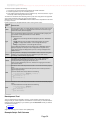
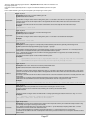
An Animation widget can be configured with the properties
Console toolbar or by double clicking the widget itself.
button found in the Virtual
General Page
Widget
name
Matrix
Function
Set the friendly name of the widget, displayed above the two Click & Go
buttons
Shows you the name of the RGB Matrix Function that is currently assigned to
the widget.
Attach a RGB Matrix Function to the widget
Detach the current function from the widget
Apply color
and preset
changes
immediately
Select whether the changes to the Matrix must be applied immediately or at the
next Matrix loop
You can attach an external input channel from an input device (like a slider
board) to the widget slider so that you don't always have to use the mouse or
Page 80